


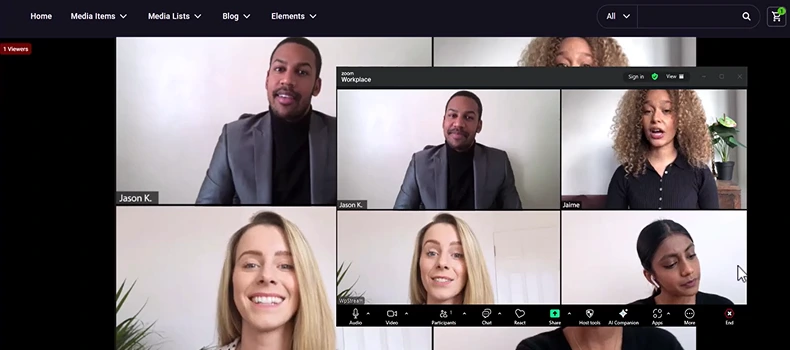
Have you ever wished you could broadcast your Zoom meeting directly on your website? Whether you’re hosting a webinar, running a workshop, or streaming a company meeting, embedding your Zoom live stream into your site can give you full control over your audience and brand.
In this guide, we’ll walk you through how to set up Zoom to stream on your WordPress website using the WpStream plugin. BONUS: Get the Hello WpStream Theme for a full streaming site experience and one click demos.
What You’ll Need
Before we start, make sure you have:
- A Zoom Pro or Business plan (custom streaming is not available on the free or basic plans)
- A WordPress website
- The WpStream plugin installed and activated (you can check out our full installation guide in the resources section)
Schedule Your Zoom Meeting
- Log in to your Zoom account.
- Go to Meetings and click Schedule a Meeting.
- Fill in the details such as name, date, and duration.
- Save your meeting.

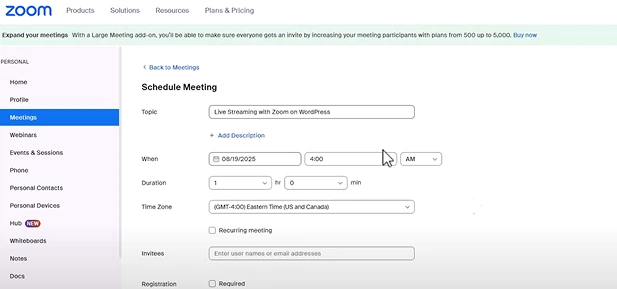
Once saved, you’ll be able to configure the live streaming settings.
Configure Zoom’s Live Streaming Settings
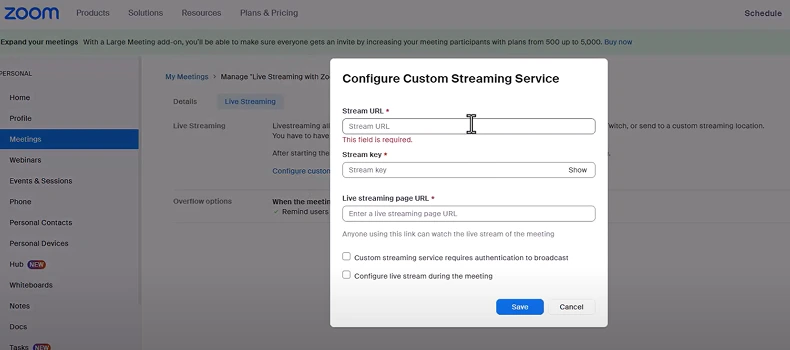
- In your meeting details, look for the Live Streaming tab.
- You’ll see options to stream to Facebook, YouTube, Twitch, or a custom streaming destination.
- Select the custom option – this is where you’ll connect Zoom to your WordPress website via WpStream.
Set Up Your Channel in WpStream
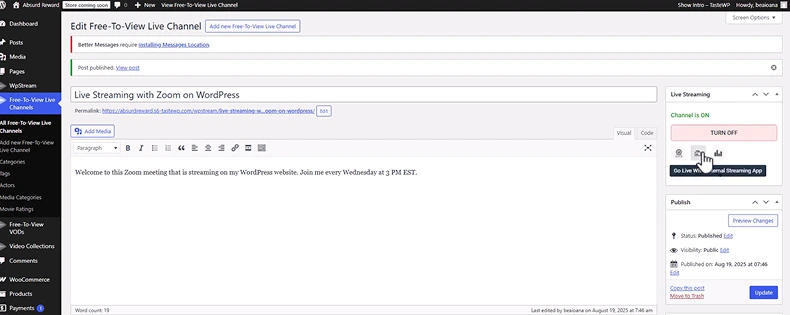
- In your WordPress dashboard, go to WpStream → Free-to-View Live Channels.
- Add a title, description, tags, logos, or featured image for your live stream.
- Publish your channel.
- Switch the channel On.
- Click Go Live with External Streaming App – this will generate your Stream URL and Stream Key.

Connect Zoom and WpStream

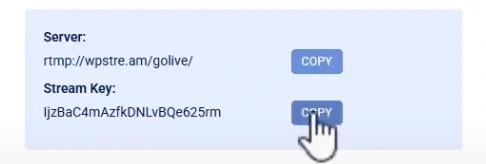
- Copy the Stream URL and Stream Key from WpStream.
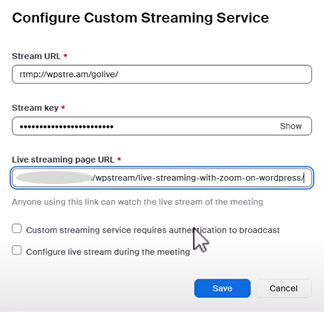
- Paste them into the Zoom live streaming configuration.
- Also paste the Live Streaming Page URL from your website (this is where viewers will watch the stream).
- Save your settings.

Start Your Live Stream
- Start your scheduled Zoom meeting as usual.
- Once inside, click the three dots (More) and select Live on Custom Live Streaming Service.
- Zoom will connect with your WpStream channel and broadcast live on your WordPress website.


And that’s it! Your Zoom meeting is now live on your site.
Why Stream Zoom to Your Website?
- Keep control of your content and audience.
- Brand the experience with your own logo, colors, and site design.
- Engage your viewers without sending them away to third-party platforms.
Final Thoughts
Streaming your Zoom meeting to your website is a powerful way to take ownership of your events and even stream webinars (see the 6 best webinar plugins) and create a seamless experience for your audience. With a Zoom Pro plan and the WpStream plugin, the setup is straightforward and only takes a few minutes.
Ready to try it yourself? Install WpStream today and start live-streaming Zoom meetings directly on your website.
Check out the video tutorial if you want even more guided details!
