



Live streaming sounds easy. Click a button. Go live. Talk to people.
That is how it looks from the outside.
In practice, live streaming involves a series of steps: opening a website, creating an event, copying a stream key, and pasting the URL. By the time the stream starts, creators are already distracted.
This article explores why live streaming can feel challenging, what practical automation looks like, and how OBS Studio and WordPress(with WpStream) work together to create a calmer workflow. The goal: make starting a live stream normal and steady, not stressful.

Why Streaming Still Feels Harder Than It Should
Going live should feel like turning on a light. Many times, it feels more like setting up a machine with too many switches.
Most streaming tools are separate. One handles video, another the website, and another access. Creators must coordinate them, jumping between screens.
A weekly streamer once shared that they needed several browser tabs open just to start one show. A single wrong paste sent the stream to the wrong page. Nothing was broken, but nothing worked either.
This problem is not about skill. It comes from repeating the same setup steps again and again. A StreamElements report showed that many stream failures happen before the stream even starts. These issues come from setup, not content.
The pressure builds before viewers even arrive. That stress pushes people away from live streaming over time.


What Streaming Automation Really Means
Automating your streaming does not remove control. It removes repetitive work.
Automation covers repetitive tasks: no more copying keys, manually switching channels, or selecting pages each session.
Some creators worry that automation hides what is happening. In practice, it creates steady behavior. The system reacts the same way every time, which builds trust.
Automation works like a steady helper. The creator still presses start. The system simply responds without extra steps.
A Wistia study showed that creators with fewer setup steps streamed more often and stayed live longer. Less setup leads to better habits.
Automating your streaming focuses on:
- Fewer manual actions
- Clear system response
- Predictable results
The result is confidence when pressing the start button.

The Manual Workflow Most Streamers Still Use
Many live streaming workflows follow the same pattern.
A typical workflow: open platform, create or enable an event, copy stream URL and key to OBS, check settings, start stream.
Then comes waiting. Pages refresh. The player is checked. Viewers wait.
In one real case, a creator pasted the stream key into the wrong profile. The stream never appeared. Ten minutes passed before anyone noticed.
This workflow exists because systems are built in parts—OBS for video, WordPress for pages, with a fragile connection between them.
Restream data shows many creators reuse the same stream key across sessions. This increases risk and confusion.
Manual workflows stay risky because:
- People repeat small mistakes.
- Tools do not share live status.
- One error breaks the flow.
Repeating delicate steps adds tension before each stream.
The Part That Gets Automated and Why It Matters
The most helpful part to automate is the stream’s start.
When OBS streams, everything else should be ready: the channel should be live, the player should be active, and the page should be updated automatically.
This removes the need to prepare the site before pressing the start button.
Many WordPress sites with WpStream now react directly to the OBS signal. No copying keys. No toggling switches. OBS becomes the main control.
This matters because creators focus on moments rather than systems. If systems demand attention, they distract from content.
In tests with automated starts, stream launch time dropped from minutes to seconds. That change improves confidence.
Automating this step means:
- Stream start triggers live state.
- Stream keys stay hidden.
- One action replaces many.
Fewer steps make it easier to show up consistently.


How OBS Fits Into an Automated Workflow
OBS stays exactly where creators expect it to be.
Automation doesn’t replace OBS; it listens. OBS sends the signal, then the system reacts.
Creators already trust OBS. They know the buttons. They know where to click. Asking them to learn new control panels creates friction.
One church volunteer learned OBS in a single session. They never learned the streaming platform dashboard. Automation made the system usable for them.
When OBS starts streaming, the website responds. The player updates. Viewers see the video without refreshing.
OBS usage data shows that most streamers reuse the same OBS profile. That makes OBS a stable anchor for automation.
This setup works because:
- OBS stays familiar
- The website reacts on its own
- No extra tools are required.
Good systems respect habits instead of changing them.
Where WpStream Comes In
WpStream becomes the control layer.
WpStream tracks live status, manages access, and controls content displays.
Many creators are surprised to learn WordPress can manage live behavior. They expect it to only handle posts and pages. But with the WpStream plugin, live streaming is possible, including automation.
What Gets Automated Behind the Scenes
Most automation happens where users never look.
Stream keys stay hidden or rotate safely. Channels activate without clicks. Video routes to the right page. Access rules apply at once.
A real issue once occurred when a paid stream went public by mistake. A manual switch failed. Automation would have prevented it.
Behind-the-scenes systems repeat the same actions every time without emotion or delay.
Akamai reports that many live-stream security problems come from exposed or reused stream keys. Automation reduces this risk.
Common automated actions include:
- Channel state changes
- Stream routing
- Access control
When systems handle repetition, creators focus on content.
How Automating your streaming workflow is setup
Auto TURN ON only works when using an external streaming app such as OBS Studio, Larix, etc. By default, you have to manually turn ON a channel before you can go LIVE. However, by enabling ‘Auto TURN ON’ before turning ON your channel (just once), you will be able to save the server and stream key from WpStream on external streaming apps and start streaming from those apps next time without manually turning ON a channel again.
This feature is useful if you are streaming from other locations, don’t have access to your website, have others live streaming on your website (with no admin access), or simply for convenience reasons. Here is how it works:
- Enable Auto Turn ON
- Turn ON your channel
- Click on “Go Live with external streaming app”
- Choose your streaming app and copy the URL/Stream key. For OBS, you just need the stream key
- Go to OBS Studio and paste the stream key
- “Start Streaming” from OBS Studio
- Once you are done, click on “Stop Streaming”

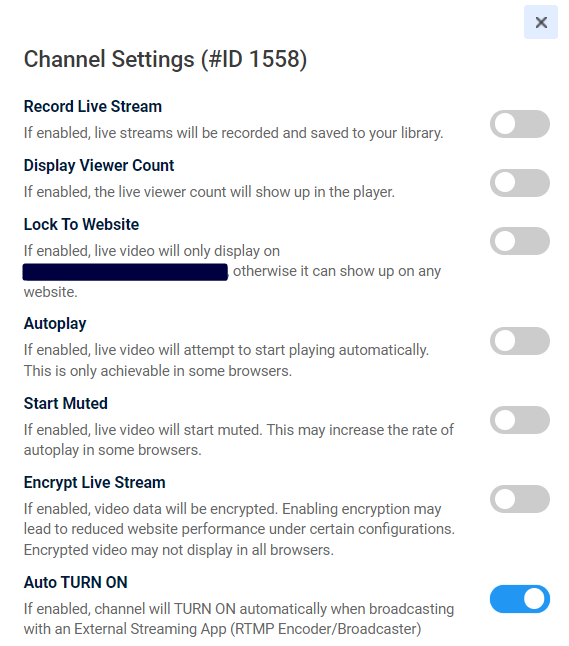
Next time you plan to go LIVE, simply go to OBS Studio and click on “Start Streaming”. You will see that you will live stream straight away!
Disabling the ‘Auto TURN ON’ feature means that you want to manually TURN ON a channel each time you go LIVE.
Why This Is the Future of Live Streaming
People expect tools to respond right away.
No one logs into email before sending a message. Live video is moving in the same direction. Press start. The stream appears.
Many creators stop streaming because the setup drains energy. When setup becomes lighter, consistency improves.
A Vimeo report showed creators with simpler workflows streamed more often. Frequency matters more than perfection.
Live video is turning into built-in site behavior. It is no longer a special event.
This shift happens because:
- Users expect a fast response.
- Websites act like platforms.
- Video blends into normal content.
Calm systems support long-term streaming.
Who Automating Your Streaming Is For
This approach fits anyone who streams often and values reliability.
Creators running weekly shows benefit from fewer steps. Businesses hosting live demos save time. Churches avoid stress during service. Educators stay focused on teaching.
One teacher shared that automation removed the fear of setup before each class. They could focus on students instead of settings.
Anyone who feels setup is heavy can benefit.
This setup works well for:
- Regular streamers
- Small teams
- Sites with access rules
When setup feels lighter, streaming feels possible.
Conclusion
If starting a live stream feels dramatic, the system asks too much.
The button should work. The page should respond. The stream should appear.
Many creators smile the first time everything happens without extra steps. That moment builds trust.
Live video should feel routine. The effort belongs in the content, not the setup.
When starting feels boring, the workflow is doing its job.