


Live webinars take time to plan. Slides need fixing, cameras need testing, and speakers often worry about low turnout. But even if only a few people show up live, you can sell webinar replays for extra income. Many viewers prefer watching later anyway. A report from Wyzowl found that nearly half of webinar viewers watch replays instead of attending live. That means the real value often happens after the stream ends.
Selling webinar replays on WordPress is easier than most think. With the right setup, one video can work for months or even years. Just one good recording and a simple sales system.
This guide shows how to sell webinar replays using WordPress tools anyone can manage. No coding needed.
Why Sell Webinar Replays on WordPress?
Passive Income From One Recording
A single video file can serve hundreds without extra effort. Once the webinar ends, the recording can be uploaded to a private page on a WordPress site. That page can be locked and sold as a product. Buyers pay once and get instant access.
Some hosts feel discouraged when live attendance is low. But replay buyers do not care how many joined live. They only care about the value inside the video.
More Viewers Watch Replays Than Live
People have busy schedules. Parents get pulled away. Workers get called into meetings. Many want the lesson but cannot join at a particular hour. That is why replay access is often more attractive than live access.
Webinars can still feel “live” even when watched late. Viewers can pause, rewind, and take notes at their own pace, which, for some, is even better.
No Live Pressure Needed When You Sell Webinar Replays
Selling replays also removes stress from hosting. Not every session needs to feel like a big show. Some speakers even skip live events altogether. They record privately, upload the file, and list it for sale immediately.
Talking to a camera is often easier than talking to a crowd.
How to Sell Webinar Replays on WordPress
Recording or Uploading the Webinar
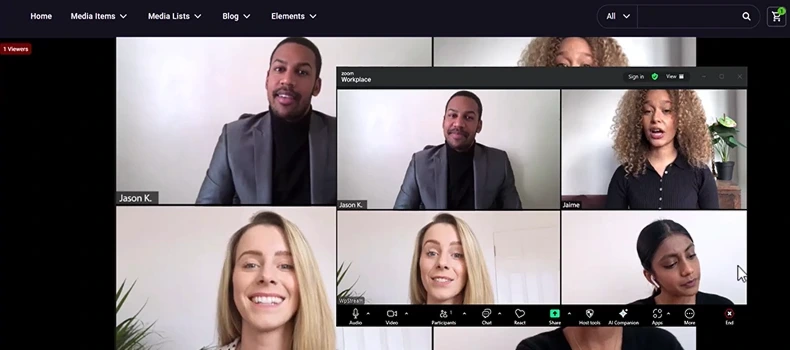
Most webinar platforms allow recording. Zoom, WpStream, StreamYard, and OBS all let users save videos locally or in the cloud. Once saved, the file can be uploaded to the WordPress media library or to a streaming plugin.
Videos should be in a web-friendly format like MP4. Long files may need compression so they load faster.
Creating a Replay Page
Create a new page in WordPress called “Replay Access—[Title].” Add the video using a block or shortcode. Plugins like WpStream, Presto Player, or YouTube embeds work fine.
Keep the layout clean. A simple headline, short description, and video player are enough.
Locking the Page
Access must be limited to paying users. WordPress offers several ways to protect pages:
- Password-protected pages
- WooCommerce “Only buyers can view” settings
- Membership plugins like MemberPress or Restrict Content Pro
Once someone pays, they should reach the video with one click. Avoid extra forms or complex logins.
Best Plugins to Sell Webinar Replays
WpStream


WpStream is built for streaming and replay hosting inside WordPress. It can stream live, save the session, and list it as a video-on-demand product. It connects with WooCommerce, so pricing can be set as free, a one-time fee, or a subscription. Our VOD explained primer covers how on-demand listing works.
Some creators bundle multiple past webinars into one “Replay Pack” for higher value. Buyers often prefer getting more in one purchase.
WebinarPress


WebinarPress lets users run live webinars on WordPress. The paid version can turn recordings into automated replays. It also automatically creates WooCommerce products, making buying and watching feel like a ticket system.
WP Event Manager (Zoom Add-On)

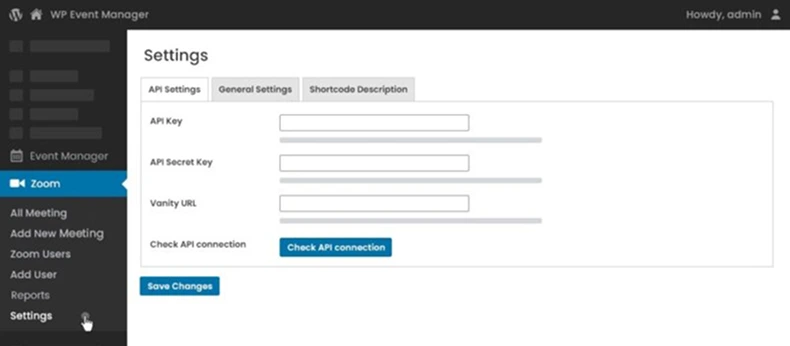
This add-on allows selling access to past sessions for those who hosted on Zoom. Only paid users get the replay link. It can also simulate live re-runs by setting fixed playback times.
WP GoToWebinar

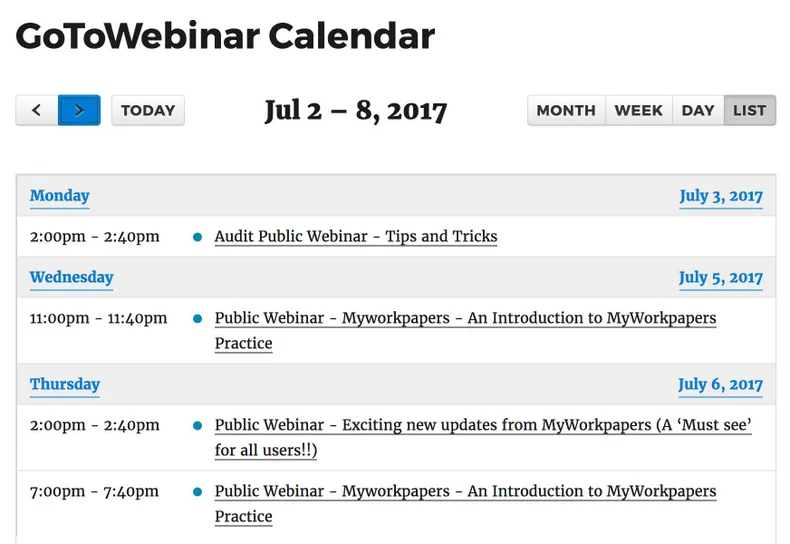
WP GoToWebinar allows you to integrate the popular webinar platform GoToWebinar with your WordPress site. The webinar plugin provides shortcodes that enable you to embed your course or registration page on any page of your WordPress site.
This plugin works well for videos hosted on YouTube (unlisted), Vimeo, or S3. It locks the video behind a WooCommerce product. Access limits can be set by time or number of plays.
Many users offer 48-hour or 7-day access windows so buyers feel urgency.
eRoom

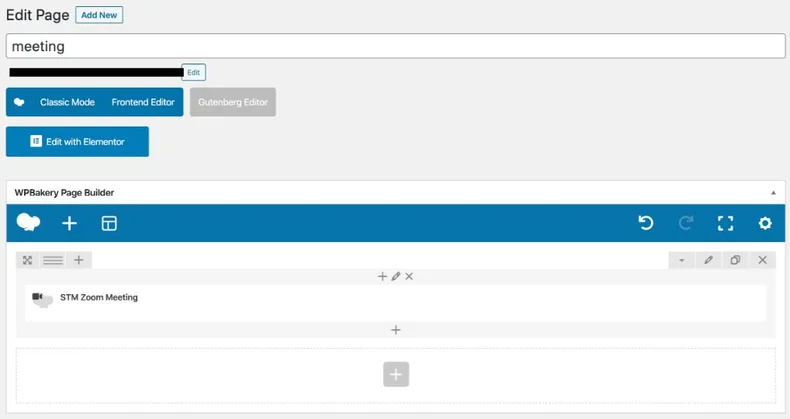
eRoom is another plugin that allows you to integrate Zoom meetings with your WordPress site easily. The plugin has built-in features to help you manage your Zoom conferences directly from your WordPress dashboard.
Payment and Access Control Options
Using WooCommerce
WooCommerce is commonly used to sell digital products. Each replay can be set as a “Downloadable” or “Virtual” product. Buyers finish checkout using PayPal, Stripe, Apple Pay, or other gateways.
After purchase, WooCommerce can automatically send login details or redirect buyers to the replay page.
Protecting Files and Streams
Security matters, especially if selling high-value content. Here are simple protection steps:
- Avoid posting video links publicly
- Use plugins that hide source URLs
- Add watermarks to the on-screen video if needed
Presto Player and WP Pay Per View offer anti-scrubbing or video overlay options.
Different Ways to Sell Webinar Replays
One-Time Payment
A single price works best for special events or expert sessions. Buyers pay once and get full access. A clear call-to-action like “Watch Now for $15” converts well.
Subscription Library
Those with many recordings can offer a monthly or yearly plan. Instead of choosing one video, buyers get access to a full library, creating a steady, recurring income.
Product Bundles
Bundling makes the offer stronger. A replay can be sold along with:
- Slide deck download
- Workbook or printable notes
- Bonus Q&A session recording
Bundles make the purchase feel like a complete kit rather than a simple video.
Free Replay for Lead Generation
Not all replays must be paid. Some can be used to grow a list. According to ConvertKit, 65% of subscribers who sign up for webinars buy a paid offer later. A free replay can be the entry point.
How to Promote Your Replay
Social Media Clips
Short highlight clips pull in buyers. Posting 20–30 second segments on TikTok, YouTube Shorts, Instagram Reels, or LinkedIn can spark interest. Each clip should include text like “Full replay on my site.”
Eyecatching captions help:
- “Missed the live event? Watch the full session.”
- “The part where everything clicked”
- “This answer surprised everyone.”
Email Reminders
Many buyers forget on the first ask. It’s normal to send more than one reminder. One email can announce the replay, and another can include a short quote or timestamped highlight.
The goal is not to push. Just to nudge.
SEO Articles and Blogs
A short blog post summarizing key lessons can send search traffic to the replay. Place a bold call-to-action link to the paid access page near the top or bottom of the post.
This method works long-term. Even old webinars can gain new buyers months later.
Partner Promotions
If the webinar included guests or co-hosts, invite them to share the replay link. Offer them an affiliate code for a share of sales. Affiliated sharing often brings a new audience without extra work.
Final Helpful Tips to Sell Webinar Replays
Selling webinar replays after your LIVE webinar (See the 6 Best Webinar Plugins) works best when things run smoothly. A few small touches can make the buyer feel cared for:
- Add a preview or short trailer before the full paywall
- Use a progress bar inside the video player
- Reply to anyone who asks questions
People who feel seen often return to buy more.
Selling webinar replays on WordPress is not only possible but practical. With common tools like WooCommerce and streaming plugins, any creator, coach, or teacher can turn one recording into ongoing value. The live session may end, but the earnings do not have to. Our guide shows how to record live streams in the first place.