
Streaming looks simple from the outside. Hit “Go Live,” talk to your audience, and let the tech handle the rest. Frame rate often gets picked in seconds, yet it shapes how viewers see motion, text, and even your face on screen. Many creators assume 60 FPS is always better because it feels smoother. That idea spreads fast in forums and gear chats. Real streaming setups tell a deeper story.
Your content type, bitrate, encoder, and viewing device all work together. A mismatch can lead to blur, dropped frames, or wasted bandwidth. A guide from Wowza notes that 1080p streams often run between 30–60 fps with bitrates from 2,640 to 12,000 kbps, showing how frame rate ties directly to data use.
WordPress creators using video plugins or theme-based media blocks face the same choice. Pick the wrong setting and even a fast site can feel rough to watch. Pick the right one and your stream feels calm, clear, and professional from the start. If you’re planning to stream on WordPress, here is our guide.
You’re Asking the Wrong Question – “Which is better”
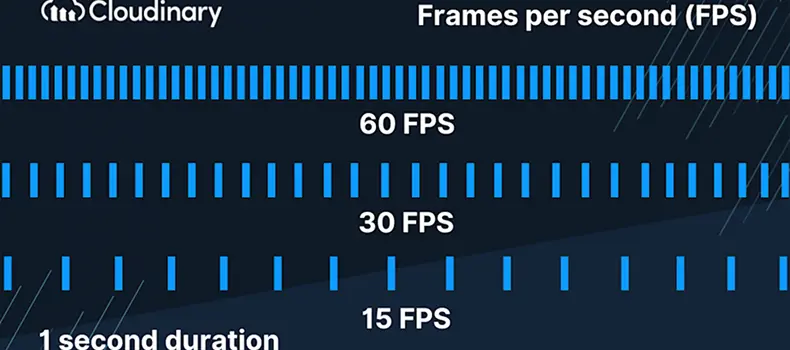
Many creators chase higher numbers. Smooth motion sounds like an easy win. The truth is that frame rate is a trade. More frames mean more data to send and decode. A streaming guide from Resi.io says 30 fps balances fluid motion with manageable file sizes, while 60 fps is often used for sports and gaming where action moves fast.
A client once switched their webinar from 30 to 60 FPS the night before launch. The slides looked soft, and viewers on slower Wi-Fi saw stutter. We dropped back to 30 FPS mid-event. Text snapped into focus right away. We learned that:
- Smooth does not always mean clear
- Higher settings raise hardware demand
- Audience connection speed matters
Sites built on WordPress themes with video headers or live blocks should treat FPS like a design choice.

The Real Question: FPS vs Clarity?
Higher frame rates demand more processing power and bandwidth. A Castr guide explains that 60 fps offers smoother motion but requires more bitrate, storage, and computing resources. Read it here.
One gaming streamer pushed 60 FPS without raising bitrate. Fast scenes turned blocky. Dropping to 30 FPS fixed it because each frame received more data.
Stats help show the scale. Encoding notes suggest a 1080p 30 fps stream may need around 2,000 kbps, while higher frame rates call for larger bitrates. Source.
- More frames divide the bitrate
- Compression rises when bandwidth stays fixed
- Busy scenes reveal artifacts faster
Creators using page builders with embedded video players should test clarity on mobile. Phones expose compression flaws quickly.
When 30 FPS Is the Smart Choice
Thirty frames per second remain the broadcast standard for many live streams. Resi calls it a strong default for events and speaking sessions because it uses less bandwidth while staying fluid.
A tutorial creator once streamed coding lessons at 60 FPS. Letters blurred during scrolls. Moving to 30 FPS made text sharper and easier to read.
Typical use cases:
- Talking head videos
- Screen shares and dashboards
- Training sessions
Encoding guidance from Castr lists 30 FPS with about 4,000 Kbps bitrate as a recommended recording setup for Full HD.
WordPress course creators often benefit from this setting. Students care more about readable screens than ultra-smooth motion.
When 60 FPS Is Worth It
Fast motion shines at higher frame rates. 60 FPS reduces motion blur and makes movement appear smoother, especially in sports and concerts. See this guide on which streaming settings you should choose.
A dance studio streamed classes using 30 FPS. Spins looked choppy. Switching to 60 FPS made moves easier to follow.
Yet there is a catch. Streaming at 60 FPS can double the required bitrate. Weak connections struggle with that load.
- Great for gameplay and action
- Helps track quick movement
- Needs strong upload speed
Creators building video-heavy WordPress pages should test network limits before committing.
Editing Choices That Prevent Headaches
Editing starts long before export. Matching the timeline to the main footage keeps motion natural. Artlist explains that content should be encoded in the same frame rate it was shot.
A travel vlogger filmed at 60 FPS but exported at 30. Slow motion worked well, yet normal clips lost some fluidity. Planning the timeline earlier would have saved time.
Stats add context. YouTube lists frame rates such as 23.98, 24, 25, 29.97, and 30 fps within recommended specs.
- Shoot high if you plan slow motion
- Avoid resampling when possible
- Keep camera and export aligned
WordPress video galleries benefit from consistent playback when files share the same frame rate.
Frame rates differ based on Platforms
Not every platform treats frame rates the same. Encoding guides stress progressive scan and proper GOP settings for stable playback. See YouTube guide.
One church streamed at 60 FPS without checking viewer bandwidth. Older tablets buffered nonstop. A return to 30 FPS solved the issue overnight.
Bandwidth math shows why. Wowza suggests setting bitrate near available bandwidth while leaving headroom for viewers.
- Viewer devices vary widely
- Higher bitrate needs stronger networks
- Stability often beats raw smoothness
Themes with background video should favor settings that load quickly across devices.
A Simple Decision Guide
Picking a frame rate should start with the nature of your content.
60 FPS fits fast-paced streaming, while 30 FPS suits casual video and vlogging.
A small agency streamed marketing workshops. They began at 30 FPS and upgraded only for product demos with motion graphics. That mix worked well.
Quick chooser:
- Mostly talking or slides: 30 FPS
- Fast action: 60 FPS
- Unsure: test both
The 5-Minute FPS Stress Test:
- Record two clips at identical bitrate
- Include motion and detail
- Compare text sharpness and movement
Most creators skip testing. Those five minutes often reveal the right answer.
Your Frame Rate Checklist
Frame rate gets blamed for many problems that come from elsewhere. Lighting, shutter speed, and encoder load shape image quality, video compression, etc.
A bitrate guide explains that higher bitrates raise detail, while lower ones can reduce clarity.
A startup streamed interviews in a dim room. They thought FPS caused the noise. Adding light fixed it instantly.
- Check lighting before raising FPS
- Watch for dropped frames
- Confirm encoder capacity
Video plugins inside WordPress rely on clean input. Fix the basics first.

The Best FPS Is the One You Can Deliver Consistently

Smooth video means little if it buffers. Stable playback keeps viewers watching longer. Many creators find that 30 FPS offers strong quality per bit, while 60 FPS shines when motion drives the content.
Testing your setup is smarter than copying someone else’s settings. Networks, gear, and audience habits differ. Pick the frame rate that holds steady during real streams.
If you plan to stream directly on your WordPress site, tools like WpStream let you host video, embed players, and keep viewers on your domain instead of sending them elsewhere. That control helps you shape the viewing experience from start to finish.
Table of Content