Church Live Streaming

Live Streaming for Churches: A Practical Guide

Choose your platform. Prepare your setup. Reach your congregation.

Pick the platform, the gear and the apps, go live on your own site, and keep every service as a replay.

How it runs

Broadcast the service, reach your congregation

01 · Capture

Record the service

Use your camera and audio feed to capture the sermon, worship, and announcements. Turn on recording to save the full service while streaming live.

02 · Stream

Send it out live

Broadcast using OBS, a hardware encoder, or directly from your browser. Members can watch on your church website from their phone, laptop, or smart TV.

03 · Replay

Share it after Sunday

Publish the recording on your website for those who missed the service. You can make it public, private, or exclusive to your congregation.

Sunday Service

Built for congregations that gather at once.

Members can join from home, hospital rooms or across the country. Bring them together on your church's site while WpStream delivers the live video.

Church Live Streaming

Start by deciding where your service will be hosted online.

You have three main options. A free social platform like YouTube or Facebook offers wide reach at no cost. A church-focused service simplifies the process for a monthly fee. Your own website keeps recordings and viewers engaged.

The People Are Already Watching

According to Pew Research Center's 2023-24 study, 23% of Americans watch religious services online or on TV at least once a month. Eight percent participate only online or on TV.

Which platform fits, what gear and apps you need, how to go live on YouTube, and what it costs.

Plus a free, printable setup checklist.
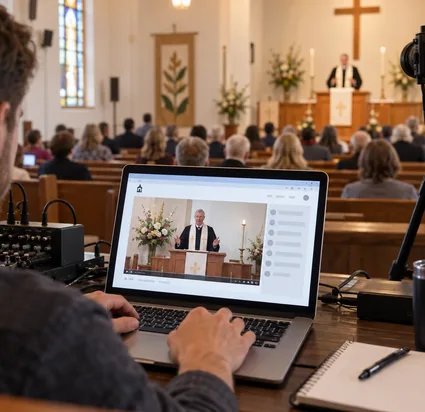
Church volunteer broadcasting a service through the church website

What Is the Best Live Streaming Platform for Churches?

The best platform depends on your budget and desired control. Free social platforms offer reach. A church-focused service provides production help.

Your website gives you both the recording and the viewers.

Most churches are already streaming.

Lifeway Research reported in September 2023 that about 73% of churches hold hybrid services—both in person and online.

The key question is where the stream will go.

PlatformChurch fitCostRecordings
Option: Free social platforms (YouTube, Facebook)Who it fits: A new or very small churchWhat it costs (checked September 21, 2026): $0 to startWho controls the recording: The platform. Facebook removes Live videos after 30 days.
Option: Your own WordPress site with WpStreamWho it fits: A church with a website that wants to keep its recording and viewersWhat it costs (checked September 21, 2026): From $24/month (Lite)Who controls the recording: The church. The recording plays on your own site.

Free Reach

Free Reach and Its Trade-offs

Free platforms come with hidden costs. A copyrighted song can interrupt your stream (explained in the YouTube setup section). You also need a streaming music license to play songs online.

On Facebook, live videos from February 19, 2025, will be removed after 30 days.

Plus, viewers watch on the platform's page, so it controls what they see next.

Streaming on your own website

The math on our own prices.

Lite

A two-hour service for 50 viewers equals 100 viewer hours.

Four Sundays total 400 viewer hours, fitting the Lite plan's 500 hours for $24 a month.

Plus

With 200 viewers each Sunday, you’d use 1,600 viewer hours monthly, needing the Plus plan at $59 a month for 2,000 hours.

The trial

The trial offers: "All features available. Plenty of resources. No Credit Card. No time limit."

One honest limit: WpStream runs no ads. If you want free reach funded by ads, YouTube is the way to start. You can move to your own site later, once the habit is established.

How to Do a Church Live Stream?

Live streaming for churches has three parts, regardless of cost. The sources are your cameras and microphones.

The encoder is the app or device that combines them into a single video stream. The destination is where people watch: YouTube, Facebook, or your church's website.

A church with one phone and another with five cameras follow the same six steps.

Plan Your Setup

Overview 1

Choose Your Destination

Select a platform and arrange your music licensing.
Test Your Audio and Video

Overview 2

Prepare Your Setup

Set up your audio, internet connection, and camera.
Engage Volunteers

Overview 3

Test and Go Live

Run a pre-service check to confirm sound and picture.

Go Live and Interact

Overview 4

Publish the Replay

End the broadcast, let the recording process, and then publish the replay.

The Complete Six-Step Instructions

1. Pick a Destination.

Use the table in the chapter above. You can change it later, but start with one.

2. Get a Streaming Music License.

Your CCLI license does not cover streaming.

Prices start at $84 per year for churches already licensed with CCLI.

3. Set Up Audio First, Camera Second.

Words matter. A viewer can follow a soft picture but not a sermon they can't hear.

4. Test Your Upload Speed.

Sunday morning internet differs from Tuesday afternoon’s. Check it before the service.

5. Go Live About 30 Minutes Early.

Have a volunteer check sound and picture on a phone. If something is wrong, you have time to fix it.

6. Turn Off the Channel When the Service Ends.

On WpStream, the recording appears shortly after. Be patient; it’s not broken.

Go Live from Your Website

What does this look like on your site? The WpStream approach has four steps. You need a WordPress website.

Install and set up the Hello WpStream theme. Import the Church Demo. Start streaming.

Before your first service, switch on "Record Live Stream" for your channel.

The recording docs explain what happens next: the video moves to Recordings, where you can download it or make it available for those who missed the service.

Publish and Share the Replay

A recording isn't a replay until you make it one. Remember this step, so add it to your volunteer's list.

If you want detailed encoder and setting explanations, refer to the full step-by-step setup. For Bible study or small groups online, check out streaming beyond Sunday service.

Choose Your Church Live Streaming Setup

Two types of church apps exist, and it’s easy to confuse them. One type sends the stream. A volunteer uses it on a phone or tablet to broadcast the service.

The other type is for members to watch the stream. Start with the first type, from a phone or a computer. The viewing apps section addresses the second.

Stream from Your Phone

If your church streams to its own site with WpStream, our documentation lists three phone apps for broadcasting:

  • Larix Broadcaster (Android and iPhone)
  • nanoStream (Android and iPhone)
  • BroadcastMe (iPhone)

You might not need an app at all. WpStream can go live from your browser. Chrome on Android and Safari on iPhone and iPad are supported.

The volunteer opens a page, allows camera and microphone access, and the service is live. No installation or updates needed.

If you prefer not to use a computer, a phone can serve as both camera and encoder with the apps mentioned.

Our under-$200 phone-only build includes everything you need, including a cable to connect sound from your mixing desk to the phone.
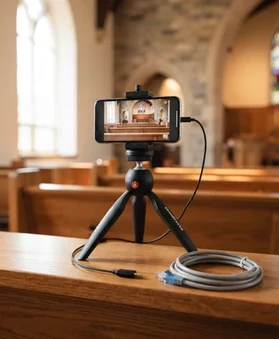
A phone on a tripod with audio and Ethernet cables in a church.
Make Streaming Easier for Volunteers

Using the browser is the simplest option, with the fewest settings to adjust. For a first stream with one phone, start there.

An app like Larix gives you more control over the picture and supports Auto TURN ON. This feature helps churches with a rota of volunteers.

If your church rotates streaming duties among volunteers, Auto TURN ON allows the channel to start automatically when the saved stream key is activated.

Volunteers don’t need the admin password to switch anything on. This reduces the chances of issues just before the service.

The documentation clarifies that this feature works only with external streaming apps, not with browser broadcasting.

WpStream also allows non-admin users to broadcast. This way, the pastor maintains control while a volunteer runs the camera.
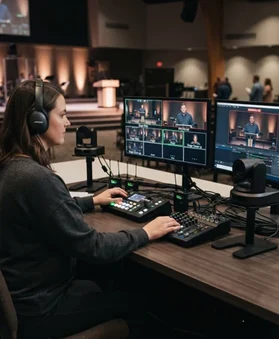
A volunteer operating church live streaming equipment.
Use the Computer You Have

The computer you already own might be enough. The only way to know is to test it. Start with OBS Studio, which is free.

The OBS Project states: "Is OBS really free? Absolutely! ... OBS has no watermarks or other limitations and can be used commercially with no restrictions."

OBS's system requirements are:

  • Windows 10 or 11
  • macOS 11 "Big Sur" or later on Intel or Apple Silicon Macs
  • Linux

Each system needs a compatible graphics card. Check OBS's published requirements for specifics.

If a volunteer wants to check an older machine, search for OBS system requirements and compare.

However, meeting the requirements doesn’t guarantee smooth streaming or recording.
A laptop for church live streaming.
Test before Sunday

A week before your first stream, run OBS on the planned computer with the real camera for the whole service.

Send the stream to a private test page or an unlisted video. If it runs smoothly for the entire time, that computer should work for now.

The workload affects performance. One camera and one microphone is light work. A recent laptop can handle that.

Every extra camera, lyrics overlay, and shot switch adds complexity.

That’s when a laptop may struggle, and a desktop with a separate graphics card becomes worthwhile.

A laptop is cheaper, portable, and easy for a volunteer to take home.

A desktop costs more but has room for a stronger graphics card and supports more cameras later.

If your church plans to stick with one camera for the next year, don’t buy a new computer for streaming. Invest in sound instead.
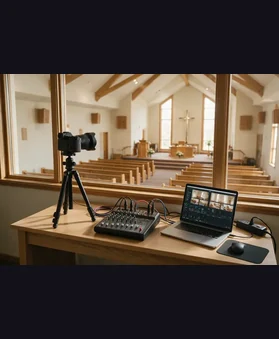
A camera, audio mixer and laptop ready for a church broadcast test.
Use YouTube from Your Phone

Not using WpStream yet? YouTube's app allows you to go live from a phone. This is the easiest and cost-free starting point.

On YouTube, the mobile app requires one condition: a channel must have at least 50 subscribers to go live from a phone.

The YouTube setup section explains this rule and other ways to go live.

Remember where the phone is placed. It’s usually at the back of the room, far from the pulpit. The phone's microphone picks up the room, not the preacher.

Plan the sound first, then choose the app.
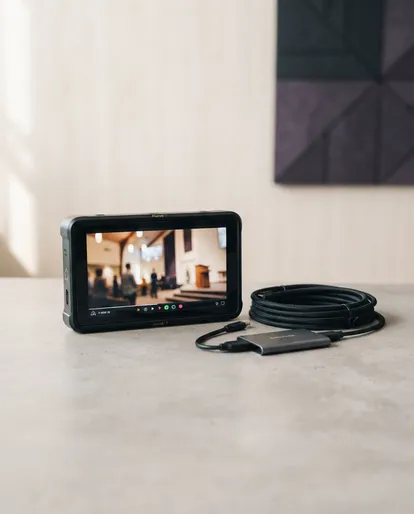
A church service broadcast on YouTube.

YouTube Copyright

During your service

Be aware of copyright risks during your service. YouTube’s page on copyright issues outlines two key points.

The first risk occurs during the stream. If YouTube detects copyrighted content, such as a song, your stream may be interrupted or terminated.

A copyright strike can end the stream too.
After the broadcast

The second risk happens after the stream. If you keep the recording, it could get a Content ID claim because YouTube makes claims after live streams if you archive the video.

The first issue stops your service while people watch. The second affects the recording on your channel.
Prepare Before Sunday

Your church should get a streaming music license from the streaming setup section before your first live service.

Also, decide what happens to the recording afterward: keep it public, make it private, or delete it. Don’t wait until Monday morning to decide.

YouTube is a great tool for reach, and for many churches, it’s a good starting point. Use it for visibility but don’t rely on it alone.
Church streaming equipment

Four budgets. One dependable signal chain.
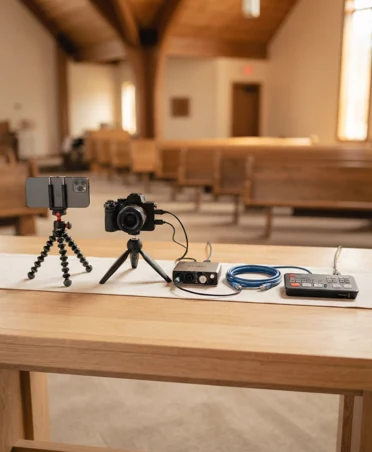
There is no single package that fits every church. These whole-kit ranges use street prices checked in June 2026. Equipment prices move, so confirm current prices before you buy.

Phone, camera, audio interface and streaming equipment arranged inside a church

Start with the Whole Kit.

Each price range covers a complete setup, not just one item. Match the level to the volunteers who will run it, then check current prices before buying.

Phone on a tripod with audio and Ethernet cables in a church

Phone Only, Under $200.

Use a phone you already own as both camera and encoder. Add a tripod, a cable from the mixing desk, and wired Ethernet.

This budget build ranges from $45 to $120.

Single camera, audio mixer and laptop at a church streaming desk

Starter, About $150 to $700.

Use one camera, sound from the mixing desk, and OBS on a computer. Existing gear keeps costs low; a dedicated single-camera build usually costs around $370 to $700.

Volunteer operating cameras, switcher and audio equipment for a church service

Mid-Level, About $2,000 to $6,000.

One or two remotely controlled PTZ cameras, a video switcher, and wireless microphones allow one volunteer to run the service from one desk.

The final price depends on camera count, microphone channels, and the computer.

Large church sanctuary with installed cameras, lighting and a production desk

Full Production, $8,000 to $20,000 and Up.

Several cameras, permanent lighting, and dedicated hardware create a solid production system. Many large churches still use OBS on a powerful computer instead of buying a hardware encoder.

Microphone, mixer, camera, encoder, router and viewing screen connected in sequence

The signal chain remains constant.

Sound, camera, encoder, internet, destination. Whether your setup costs $200 or $20,000, only quality and backup options change. Each upgrade builds on what your church already owns.

Live Streaming Equipment Setup for Church

Buying the equipment is the easy part. The setup order is critical: audio first, network second, camera third.

Audio First.

The words are the service, and the music is half of worship. A viewer can follow a sermon from a soft picture, but they can’t follow if they can't hear.

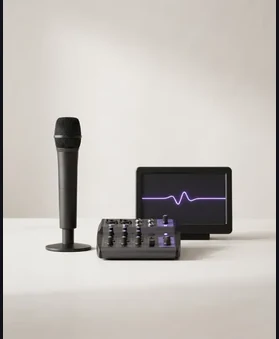
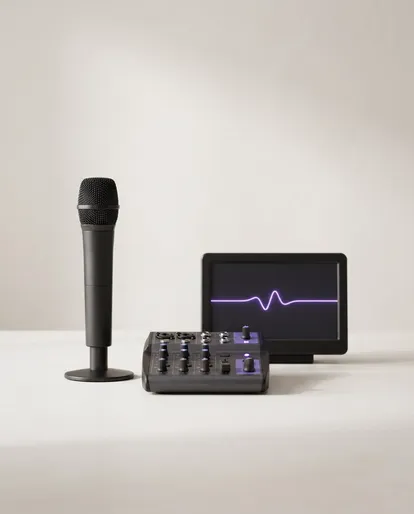
Take sound directly from your mixing desk into the encoder. Don’t rely on the microphone built into a laptop or phone at the back of the room. That microphone picks up the echo, coughs, and children, while the desk hears the pulpit.
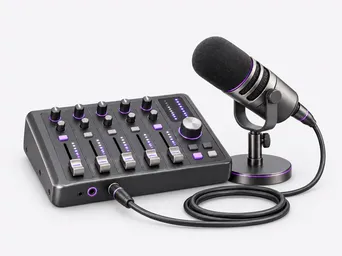
3D illustration of a church streaming audio mixer and microphone.

Network Second.

The internet connection can drop a stream mid-sermon. Test your real upload speed on the day and hour you stream.

Sunday morning, with a full building, differs from a quiet weekday. Use a wired Ethernet connection to the streaming computer or phone if possible.

Wi-Fi in a busy building shares its signal with every connected device.
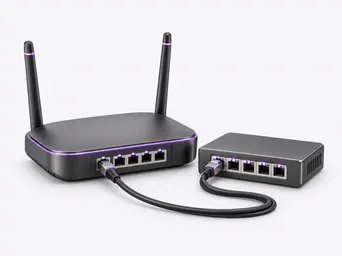
3D illustration of a wired router, network switch and Ethernet cable.

Test Your Connection

Use the WpStream speed tester for your tests. A general speed test measures your connection to a nearby server.

Ours tests against the real streaming servers your broadcast will use, so those numbers matter more for your stream.

For the target, remember YouTube's recommendation: 10 Mbps for a 1080p stream at 30 frames per second.

Stay well below the upload speed you measure, not at it.
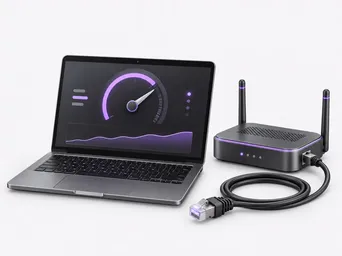
3D illustration of an upload-speed test on a laptop beside a wired router.

Camera Third.

Once the sound is clean and the internet holds, improve the picture. Start with one decent camera on a steady tripod, placed where it sees the pulpit and the altar.

Light the faces evenly.

A single camera run well by a small team is better than a two-camera setup that fails when the experienced volunteer is away.
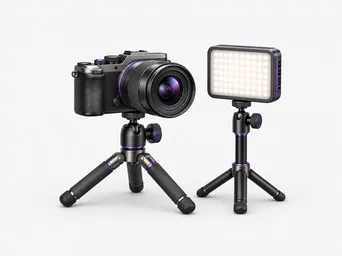
3D illustration of a video camera, tripod and LED light.

Check the Order

To check the order, watch last Sunday’s recording with your eyes closed for two minutes. If you can follow everything, your audio is good.

Then, open your eyes. If the picture is acceptable for a phone screen, stop spending on cameras and look at the internet again.
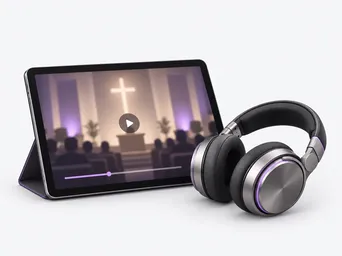
3D illustration of a tablet playing a church recording beside headphones.

Spend in the Right Order

The same order applies to your budget: spend on sound first, then on the connection, then on the camera.
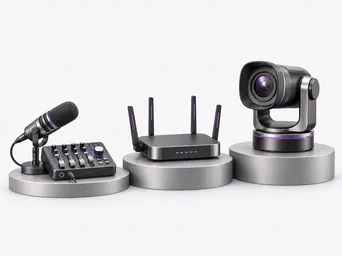
3D illustration of audio, network and camera equipment arranged in sequence.

For the complete chain, including cables and network numbers, read the setup guide.

Nine Steps from Setup to Replay

We created a free church live streaming setup checklist for you.

01

Pick your platform: Choose between your website with WpStream, a church-focused service, or YouTube/Facebook to start free.

02

Get a streaming-specific music license: Obtain a CCLI Streaming License or equivalent before your first stream.

03

Set up audio first: Use a dedicated microphone, not your laptop’s built-in mic.

04

Test your upload speed: Check it at your usual streaming day and time.

05

Choose a camera setup: One camera is fine to start, depending on your volunteer team size.

06

Pick a broadcast app or encoder: Options include phone browsers, Larix, nanoStream, BroadcastMe, or OBS on a computer.

07

Verify your YouTube channel: Turn on live streaming at least a day before your first stream.

08

Do a full run-through: Conduct this 30 minutes before the service starts.

09

Turn on the channel: Check audio and video, then start on time.

After the service, turn off the channel and wait for the recording to finish processing before sharing the replay link.

A calmer Sunday starts with a clear checklist.

Best Live Streaming Software for Churches

Separate the software from the platform.

Software is the encoder that builds your stream. It combines cameras, sound, and lyrics into one video.

Platform is where that video ends up. You need both, and they're separate choices.

OBS on a church computer can send a stream to YouTube, a hosted service, or your own website.

Start with OBS

OBS Studio is free and open-source, with no watermark or locked features. It runs on Windows, Mac, and Linux. For most churches, OBS is the best starting point.
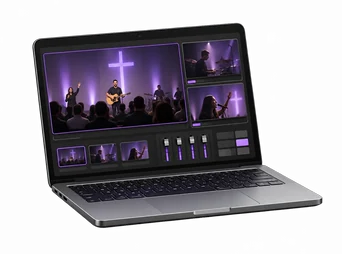
3D illustration of a laptop running a live-production interface.

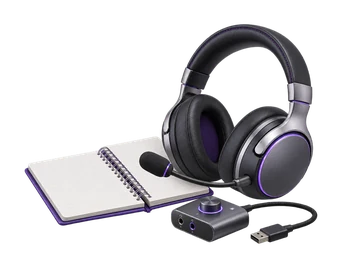
The tradeoff: support

Free software means no paid support. Your volunteers will learn it themselves, which may take a few Sundays.
3D illustration of a support headset, training notebook and audio interface.

When to Pay for Software

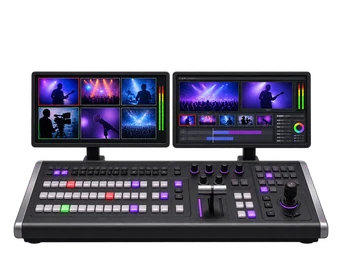
When a church needs features OBS lacks, or wants a TV control room feel, consider paid options.

Three popular names are vMix, Wirecast, and Ecamm Live. Check compatibility and price as they don’t run on the same computers.
3D illustration of a professional video production console and displays.

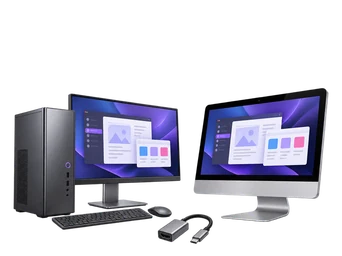
Check compatibility and price

vMix: Windows only. Ecamm Live: Mac only. Wirecast: runs on both.

If your church uses Macs, vMix is immediately off the list.
3D illustration of two different desktop computers and a cable adapter.

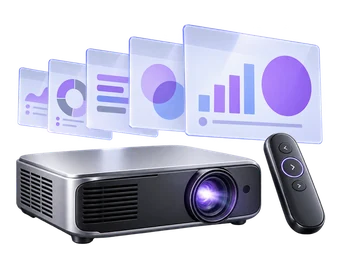
Where ProPresenter Fits

ProPresenter is used for lyrics, scripture, and sermon slides. It isn’t an encoder. Instead, it sends lyrics into OBS, vMix, Wirecast, or Ecamm Live.
3D illustration of a projector, slide remote and presentation panels.

Buy only what your team needs

For most churches, OBS is sufficient. Test it for a full service first, then stream to your chosen platform.

Purchase paid software only when you can specify a needed feature that OBS lacks. If you’re unsure, stick with OBS.
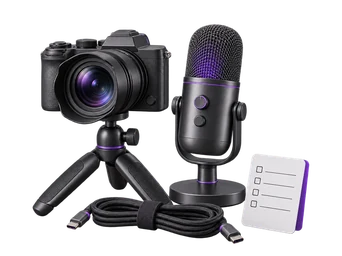
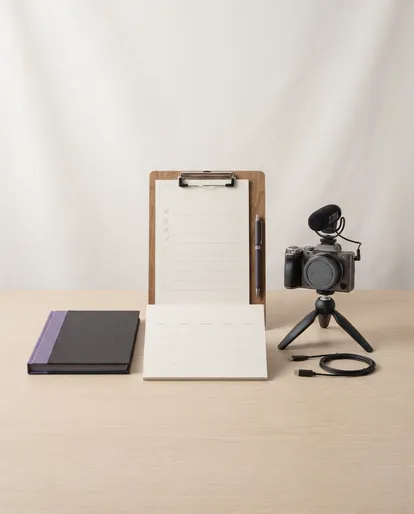
3D illustration of a compact camera, microphone, cable and checklist.

Live Streaming for Churches on Your Own Website

Keep your congregation connected

Many churches stream in 2023. Lifeway reported that 73% run hybrid services.

You face a choice between reach and ownership. YouTube and Facebook offer reach at no cost. Your website keeps recordings, replays, and relationships with viewers.

You can start with YouTube and add your site later, or use both simultaneously.

For the own-website option, check WpStream for churches or see a demo of the Hello WpStream theme.

Plans and hours are on the pricing page. Whatever you choose, print the checklist and run a full test stream at your service time before your first live Sunday.

Trust our customers

FCAMEZ

★★★★★

As a church that has recently transitioned to live streaming, we at Franklin Chapel AME Zion Church have been absolutely blown...

fcamez · WordPress.org reviewer

See full review

Eric Bailey

★★★★★

Very Easy setup and Well documented information to get started 😉

See full review

Acityconnect

★★★★★

WOW! What an amazing plugin and service. We could not run our live streaming now without this interface, we reach 1000’s more...

acityconnect · WordPress.org reviewer

See full review

More Church Resources

Frequently Asked Questions

Yes. A regular CCLI Church Copyright License doesn’t cover streaming. You need a separate streaming license, like the CCLI Streaming License, starting at $84 per year for already licensed churches, or $108 for an average church of 100 to 199 people (US prices, checked September 21, 2026). This applies to all platforms, including YouTube, Facebook, or your site with WpStream.

Closed captions are among the reasons to play a stream through a third-party player. Setting that up requires technical work with the platform’s API, so it’s a task, not a simple switch. If captions matter, plan this work before the first service, or ask someone experienced to help.

It depends on where you stream. Facebook removes live videos after 30 days. YouTube keeps recordings on your channel but may issue a Content ID claim for copyrighted music. On your WordPress site with WpStream, the recording moves to your Recordings list and plays on a page your church controls.

Check your upload speed first. YouTube recommends a 10 Mbps bitrate for a 1080p stream at 30 frames per second. Your upload must exceed that with room to spare. Test it during your streaming time with a tester like the WpStream speed tester. Use a wired connection instead of Wi-Fi when possible.

Ready when you are

Start your free trial

Try live broadcasting and replays on your website.