Shopify live streaming

Shopify Live Stream: Live Video and Replays on Your Store

Install the free app. Paste one Content ID. Go live on your store.

A free theme app block that plays WpStream live shows and replays on your Online Store: how it works, what it won’t do, and what it costs in hours.

How it runs

From your studio to your storefront

01 · Broadcast

Go live from WpStream

Start your live channel in WpStream and broadcast from an encoder such as OBS. Your studio sends the show; the store only plays it.

02 · Store

The app block plays it

The WpStream Video Player block in your theme plays whatever its Content ID points to. Shoppers watch in a full-width 16:9 player, right inside the section where you placed it.

03 · Replay

Keep the show on the store

Turn on Record this stream before the channel starts.

After the show, turn the recording into a video, paste that video's Content ID in the block, and the replay stays on the page.

On your storefront

Your show plays where shoppers already browse

The player sits inside a theme section, right where you placed the block. Shoppers can go fullscreen or picture-in-picture, and the player loads as they scroll near it.

Shopify's own video

Can a Shopify store stream live on its own?

Not with Shopify alone.

Product media takes an uploaded video file or a YouTube or Vimeo link, and Shopify Help is plain about the rest: "URLs other than YouTube or Vimeo URLs aren't supported."

There's no field for a live source of your own, so a Shopify live stream needs an app.

The upload rules tell the same story. A product video can run up to 10 minutes, at up to 4K, as an .mp4, .mov or .webm file.

That's plenty for a product clip on the product page. It isn't a one-hour launch show, and nothing about it is live.

Shopify's own blog sends merchants who want live video to apps.

The WpStream Video Player is one of them: a free app that adds a theme app block to Online Store 2.0 themes.

The block plays a live channel or a recorded video, in the sections where your theme accepts app blocks.

What you needShopify product videoYouTube or Vimeo linkWpStream Video Player
What you need: SourceShopify product video: An uploaded video fileYouTube or Vimeo link: A public or unlisted YouTube video, or a Vimeo video that allows embeddingWpStream Video Player: A WpStream live channel or recorded video
What you need: LengthShopify product video: Up to 10 minutes per videoYouTube or Vimeo link: Set by the video platformWpStream Video Player: Counted in WpStream hours, not a clip limit
What you need: Live broadcastShopify product video: NoYouTube or Vimeo link: Not covered in Shopify's product media helpWpStream Video Player: Yes, from your WpStream live channel
What you need: Where it showsShopify product video: Product mediaYouTube or Vimeo link: Product mediaWpStream Video Player: Theme sections and templates that accept app blocks
What you need: CostShopify product video: Included with ShopifyYouTube or Vimeo link: Free to link; the platform's own terms applyWpStream Video Player: Free app plus a paid WpStream plan in hours

The app

One block for the live show and replay

The WpStream Video Player brings Shopify live streaming to your theme, and it's free on the Shopify App Store.

It adds one theme app block: place it in the theme editor, paste one WpStream Content ID, save.

The Content ID decides what plays, a live channel or a recorded video, so the live show and its replay share one block.

The same Content ID also plays on an Astro site.

Add the block in about 10 minutes

You need a Shopify store on any plan with an Online Store 2.0 theme, and a WpStream account with at least one live channel or recorded video.

Every screen and every fix is in how to add live video to Shopify.

WpStream Video Player setup in Shopify admin

Install

Install the app

Open the WpStream Video Player listing on the Shopify App Store, click Add app, then Install in your admin. You can come back any time from Apps → WpStream Video Player.

Hands working on a laptop beside source code

Copy

Copy the Content ID

Sign in to WpStream Studio and open Live Channels or Videos. In the embed bar near the bottom of the page, click the Content ID for Shopify tab and copy the value.
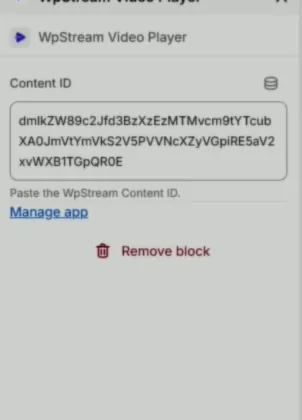
WpStream Content ID field in the Shopify theme editor

Place

Add the block to your theme

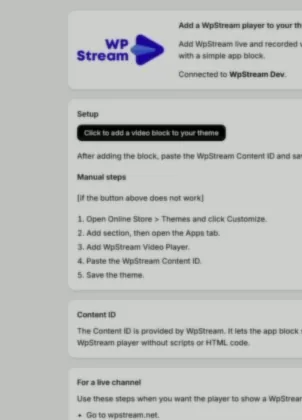
In the app's Setup section, use the Click to add a video block to your theme button.

If the button fails, go to Online Store → Themes, Customize, Add section, the Apps tab, then WpStream Video Player.

Merchant presenting handmade products to a phone camera

Save

Paste, save, go live

Paste the value into the block's Content ID field and click Save in the top right of the theme editor.

Start your live channel, and shoppers see the live stream on your Shopify store.

When the block needs a second look

Not in the Apps tab

Some theme sections don't accept app blocks, and Vintage themes have no app block support. Try another section or template, or ask your theme developer which sections support app blocks.

Invalid WpStream Content ID

That message means the pasted value isn't a valid Content ID. Copy it again from the Content ID for Shopify tab: the whole value, with no extra spaces.

An empty block

The block shows "Paste a WpStream Content ID in the block settings." until the field has a value. Paste the ID and save the theme again.

A blank player

Check that the channel is live, or that the video is published in your WpStream account. The block plays what its Content ID points to, and nothing else.

You changed your theme

Shopify says apps must be re-activated in a newly published theme. Add the WpStream Video Player block again and paste the same Content ID.

Test before the drop

Run a short test stream before a big launch. The WpStream pricing page notes that test streams use broadcast hours because the live channel is active.

What you set in WpStream, shoppers see

The block has exactly one setting: the Content ID. There are no player options inside Shopify.

Everything else lives on the live channel in WpStream, and you change it while the channel is stopped. The block then plays the live show the way the channel is set.

Record the show

Record this stream saves a recording of the show, which you can turn into a video for the replay. It counts against your recording hours.

Viewer count

Display viewer count shows the number of shoppers watching at the same moment, right on the player.

Auto play

Auto play starts the stream on its own as soon as the player loads, so shoppers don't have to find a play button. Pair it with Start muted.

Start muted

Start muted opens the player without sound. Shoppers unmute when they're ready, so a store visit doesn't begin at full volume (nobody browses mugs expecting a soundtrack).

Encrypted stream

Encrypt live stream signs the playback links and encrypts the video segments, which makes the live show harder to copy off your store page. Content protection is part of every plan.

Fullscreen and picture-in-picture

Not a setting: the block always allows fullscreen and picture-in-picture, where the browser supports it, so the show can keep playing in a small window.

Where live video earns its place on your store

These are ideas for Shopify live video, not results from other stores.

The player goes in theme sections that accept app blocks, and Shopify notes that app blocks might only work on certain page types. Check your template first.

For the wider case for selling live, see live streaming for e-commerce.

Launch premiere

Reveal a new collection or a limited drop live on your home page. Shoppers who arrive late still find it in the same spot: swap in the replay after the launch.

Fashion host presenting a collection to online shoppers
Weekly live demo

Same block, same channel, same time every week.

Shoppers learn where the show lives on your store, and you don't touch the theme between episodes, because the channel's Content ID stays the same.

Product presenter preparing a phone camera and ring light
Workshop or class

A live how-to for a craft, beauty or kitchen brand: the technique, the tools and the finish, shown in real time.

Record it, and the shoppers who missed the class can watch the replay on the same page later.

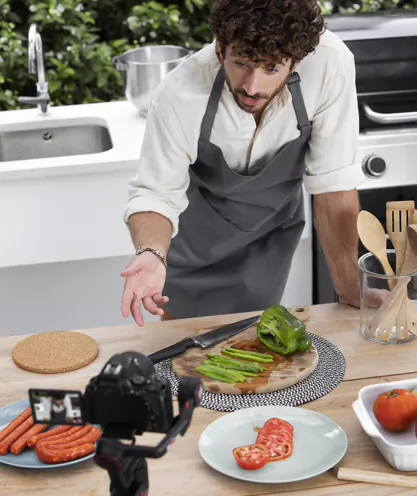
Cook recording a kitchen demonstration
Replay by the product

Put a recorded demo in a section of your product template, next to the product details.

This works only where the theme's product template accepts app blocks, so try it in the theme editor before you plan around it.

Shopper watching online content while browsing at home
Store event

An anniversary, a pop-up, a tour of the workshop where the products are made.

Put it on the store at a set day and time, and keep the recording in the block for shoppers who come by afterwards.

Florist managing an online business from her shop

Know the limits

Is this a live shopping app?

No. It's a video player for your storefront, and it stops there. There are no add-to-cart buttons or product tags inside the video, and no chat.

There's no shoppable overlay and no paywall or pay-per-view for shoppers on Shopify.

One block plays one Content ID, with no player settings per block, and there are no analytics in Shopify admin.

In practice, you put the block next to your product section and shoppers buy the usual way, from the product form beside the video.

The app is not involved in checkout, so orders, discounts and payments run through Shopify as they do today.

If you need buying inside the stream, dedicated live shopping apps sell that, often for a monthly fee or usage charges.

NeedWpStream Video PlayerLive shopping apps
Need: Buying inside the videoWpStream Video Player: No; shoppers use your product section and checkoutLive shopping apps: Add-to-cart in the stream is the core feature
Need: Live chatWpStream Video Player: NoLive shopping apps: Common; Channelize and LIVEL list it
Need: ReplayWpStream Video Player: Same block, with the recorded video's Content IDLive shopping apps: Shoppable replays in several apps, such as Channelize and LiveMeUp
Need: Where the video comes fromWpStream Video Player: Your WpStream live channel, sent from an encoder such as OBSLive shopping apps: The app's own studio or host tools; varies by app
Need: Setup on the storeWpStream Video Player: One theme app block, one Content IDLive shopping apps: Widgets, generated pages or a sales channel; varies by app
Need: Price, as listed on the Shopify App Store, September 2026WpStream Video Player: Free app plus a WpStream plan in hoursLive shopping apps: LIVEL: $19/month; Channelize: from $97/month
Free app, paid streaming

The app costs nothing. Streaming runs on a WpStream plan metered in hours.

Lite

Lite costs $24 a month, $190 a year or $36 one time, per the WpStream pricing page (September 2026).

You get 100 broadcast, 500 viewer and 25 recording hours, 200 simultaneous viewers and 5 live channels. Hours from a one-time purchase don't expire, which suits a single launch.

Plus

Plus costs $59 a month, $490 a year or $89 one time, with 250 broadcast, 2,000 viewer and 100 recording hours, 1,000 simultaneous viewers and 15 live channels.

Pro and Ultra cover bigger launches: see all plans.

The trial

Start with the free trial: no credit card, no time limit. Then pick a paid plan.

Viewer hours add up across shoppers: "If 10 viewers watch a live stream for 1 hour, you use 10 Viewer Hours."

More on selling live

Shopify FAQ

Shopify live stream questions

Not out of the box. Product media accepts uploaded video files or YouTube and Vimeo links, and nothing live of your own.

With the free WpStream Video Player app, you add a theme app block, paste one Content ID and save. Then you start your live channel, and the show plays on your store.

Yes. The app is listed as Free on the Shopify App Store.

Streaming runs on a paid WpStream plan metered in broadcast, viewer and recording hours, from $24 a month or $36 one time (September 2026).

You can start with a free trial and no credit card.

The listing also says the app can “View staff and contributor data: Store owner”, which covers the store owner’s name, email address, phone number and physical address.

All plans are on the pricing page.

Online Store 2.0 themes and the newer theme-block themes, which support app blocks. Vintage themes don’t, so the WpStream block won’t appear there.

Even on a 2.0 theme, Shopify notes that some theme sections might not support app blocks.

A quick check: if your default product template shows an Add section button, it’s a 2.0 theme.

No. The WpStream player has no add-to-cart button, no product tags and no chat inside the video.

Place the block next to your product section instead, so shoppers watch the demo and buy from the product form beside it.

Checkout stays in Shopify, and the app isn’t involved in it.

Yes. Turn on Record this stream on the channel before it starts. After the show, give the recording a few minutes to appear, then turn it into a video.

Open Videos in WpStream Studio, click the Content ID for Shopify tab in the embed bar and copy the value. Paste it into the same block and save.

No. You place the block in the theme editor and fill in one field, the Content ID. The App Store listing says no coding is needed for setup or updates.

The step-by-step setup guide shows every screen of the WpStream setup. If the block still won’t show your video, email [email protected].

Start your live channel in WpStream Studio and send the show from an encoder such as OBS.

The block plays the channel its Content ID points to, so nothing changes on the store side between shows.

Run a short test before each Shopify live stream: test streams use broadcast hours because the live channel is active.

Shopify says that if you change your published theme, you’ll need to re-activate apps “in your new theme as they won’t be active by default.”

So open the new theme in the theme editor, add the WpStream Video Player block again and paste the same Content ID. Your channel and videos stay as they are.

Ready when you are

Start your free trial

Try live broadcasting and replays on your website.