
How to Add Live Video to Shopify
Add live or recorded video to your Shopify store with one app block and one Content ID. Six steps, no code, about 10 minutes. See how.
Last updated: August 2, 2026
You add live video to Shopify by installing WpStream Video Player, a free app from the Shopify App Store that drops one theme app block into an Online Store 2.0 theme. Six steps, about 10 minutes by the tutorial’s estimate: install the app, open it from Apps > WpStream Video Player in your Shopify admin, copy a Content ID out of your WpStream account, use the app’s shortcut into the theme editor, paste the ID into the block’s Content ID field, and click Save. Then open the page on your storefront. The same block plays a live channel or a recorded video, and the Content ID you paste decides which one. You never open a code editor. One thing up front: the Shopify app is free, but it needs a WpStream account behind it, and that account is a separate paid product with a free trial.
Before you start: an Online Store 2.0 theme and a WpStream account
Three things, and the tutorial lists them up front: a Shopify store (any plan with an Online Store 2.0 theme), a WpStream account with at least one live channel or recorded video, and about 10 minutes.
The theme generation is the one that can stop you. Shopify’s feature table gives Online Store 2.0 themes “Enhanced app support: Install or change apps without touching any code,” and marks that row absent on Vintage themes. That row is what this app runs on, and the capability behind any no-code e-commerce website. To check yours: “You can find out your theme’s developer and version in the theme editor.”
The app ships as a theme app block. Shopify’s own definition: app blocks “let you add app functionality exactly where you want to use it in your theme,” added and moved from the theme editor. Not an app embed (those float or run invisibly, like a chat bubble), and not injected theme code.
The app is free. The account behind it is not: WpStream is a separate paid product, and the trial stated on the WpStream pricing page is all features available, no credit card, no time limit. No day count is given, so don’t plan around one.
What is a WpStream Content ID?
A WpStream Content ID is a value provided by WpStream that tells the WpStream Video Player block exactly which live channel or recorded video to show. You copy it from your account, paste it into one field in the block settings, and save. That field is all the setup requires.
The interesting part is what that one value decides. From the tutorial: “The same app block supports both live channels and recorded videos, the Content ID itself determines which one plays.” There is no live or recorded mode to pick in Shopify. The ID resolves to a content type inside your account.
So the real choice is a content one, not a configuration one. A live channel is for an event with a start time. A recorded video is for the demo that has to work at 2am, or the replay afterwards, which is what VOD is in practice.
How do you add live video to Shopify with WpStream Video Player?
-
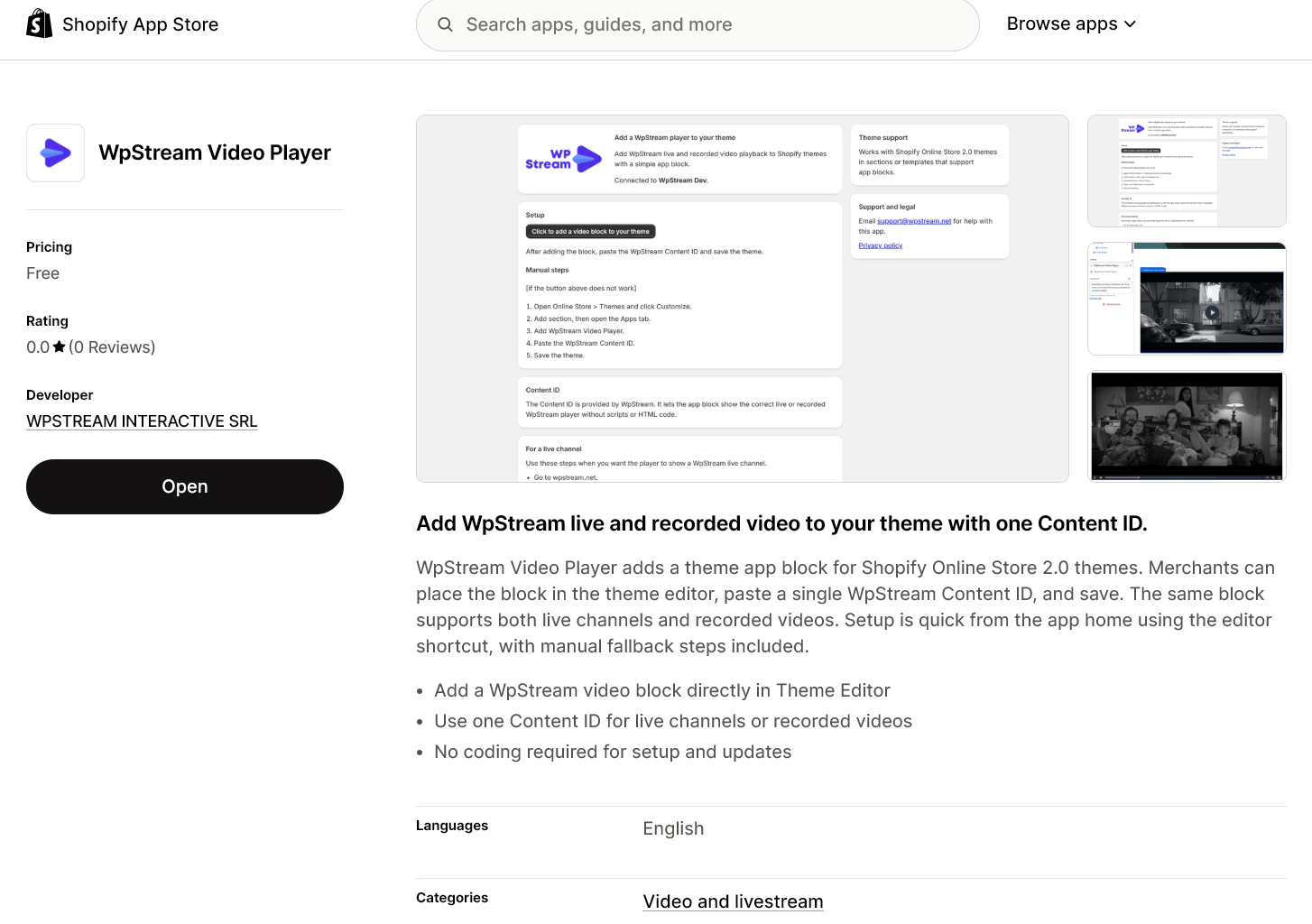
Install the app from the Shopify App Store. Open the WpStream Video Player listing on the Shopify App Store (search for WpStream Video Player). Click Add app. If that button reads Open instead, the app is already installed on this store and you can skip to Step 2.
Shopify then takes you to your admin to confirm the installation, review the details and click Install. The app opens automatically when it finishes.

WpStream Video Player on the Shopify App Store. -
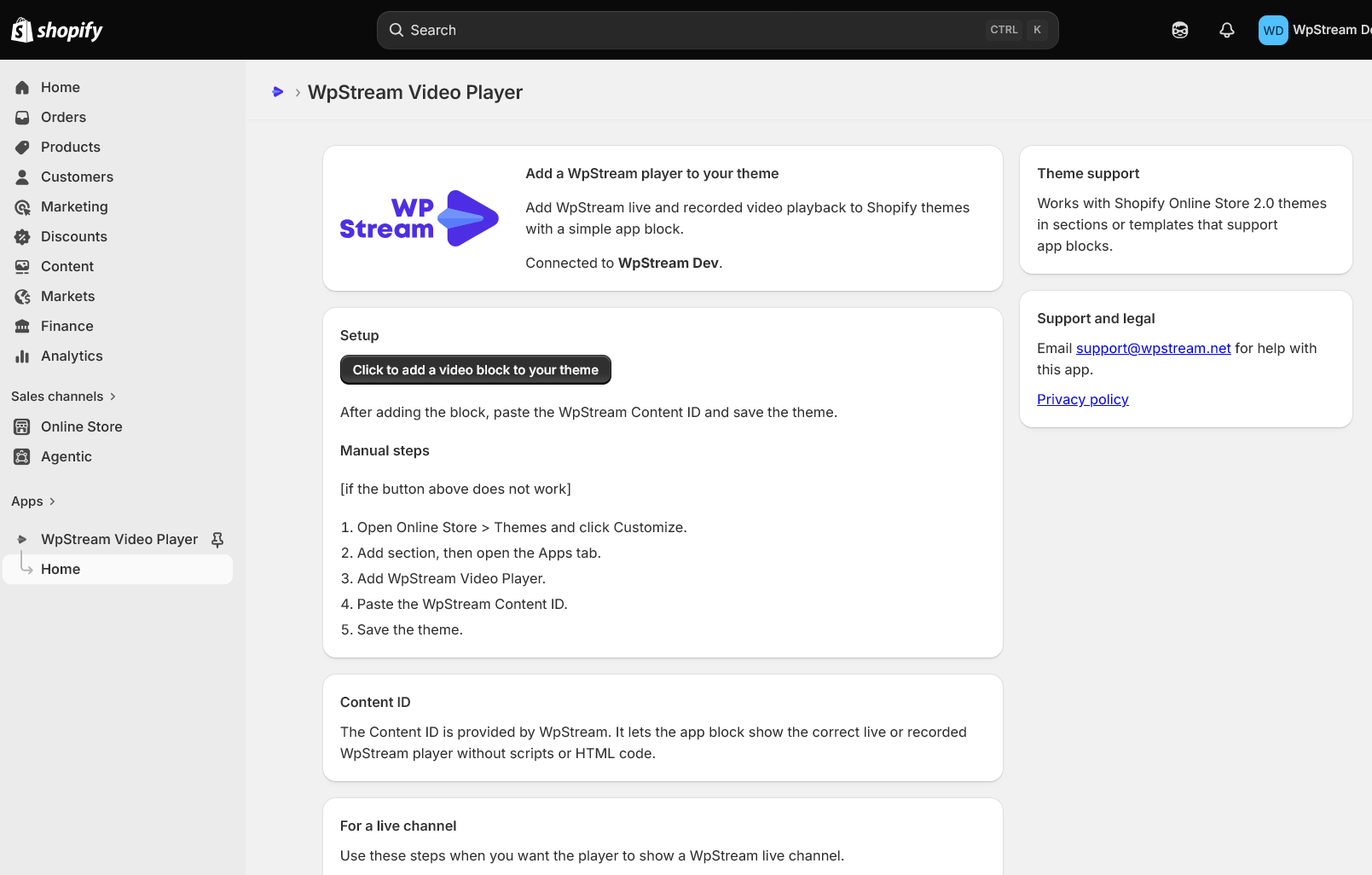
Open the app in your Shopify admin. You can return to the app any time from Apps > WpStream Video Player in your Shopify admin. The home page shows a short intro and a Setup section. Leave that tab open, because Step 4 starts from it.

WpStream Video Player app home page. -
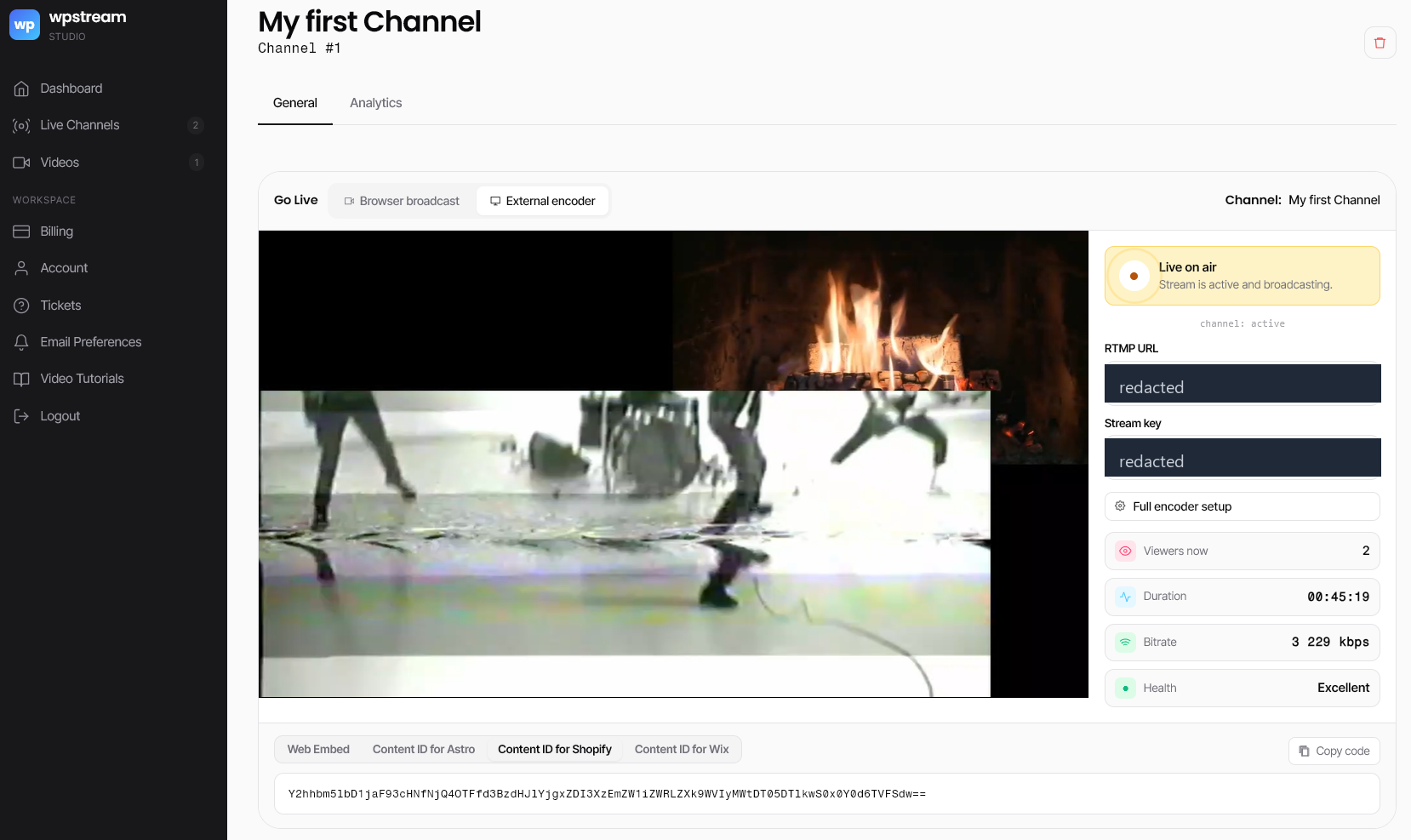
Get your WpStream Content ID. Grab it before you touch the theme editor.
- Go to wpstream.net and sign in to WpStream Studio.
- In the left menu, open Live Channels (for a live channel) or Videos (for a recorded video), then select the channel or video you want, or create a new one.
- Scroll to the embed bar near the bottom of the page and click the Content ID for Shopify tab.
- Copy the Content ID value shown beneath it.
No channel yet? The live shopping demo shows one in action.

Copy the “Content ID for Shopify” from WpStream Studio. -
Add the video block to your theme. In the app’s Setup section (the one on the home page from Step 2), click Click to add a video block to your theme. That opens the Shopify theme editor with the WpStream block ready to add. This is the “add video to Shopify without code” part: no Liquid, no snippet to paste.
If the button doesn’t work, add the block manually:
- Open Online Store > Themes and click Customize.
- Click Add section, then open the Apps tab.
- Add WpStream Video Player.

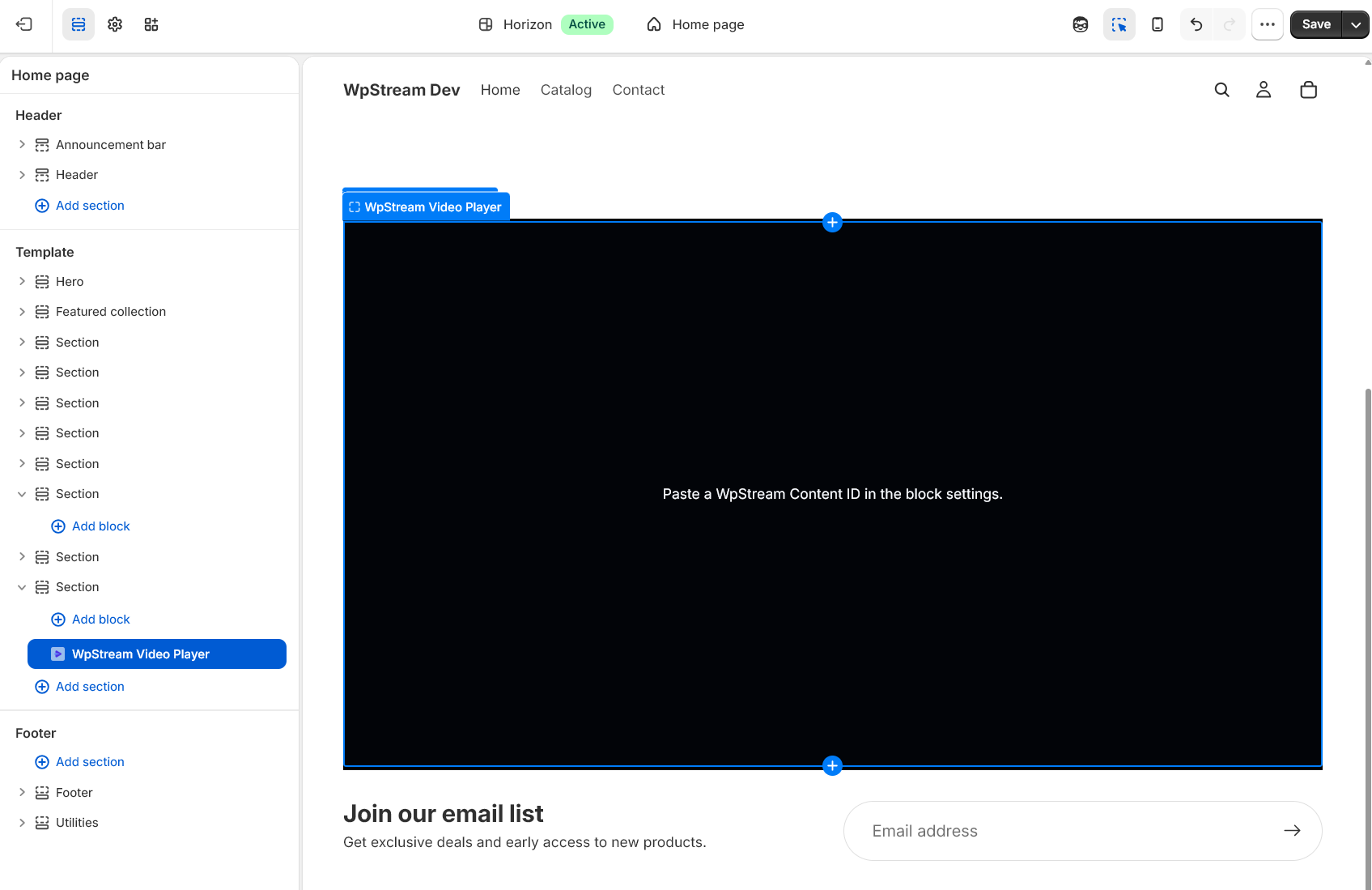
WpStream Video Player block in the theme editor. -
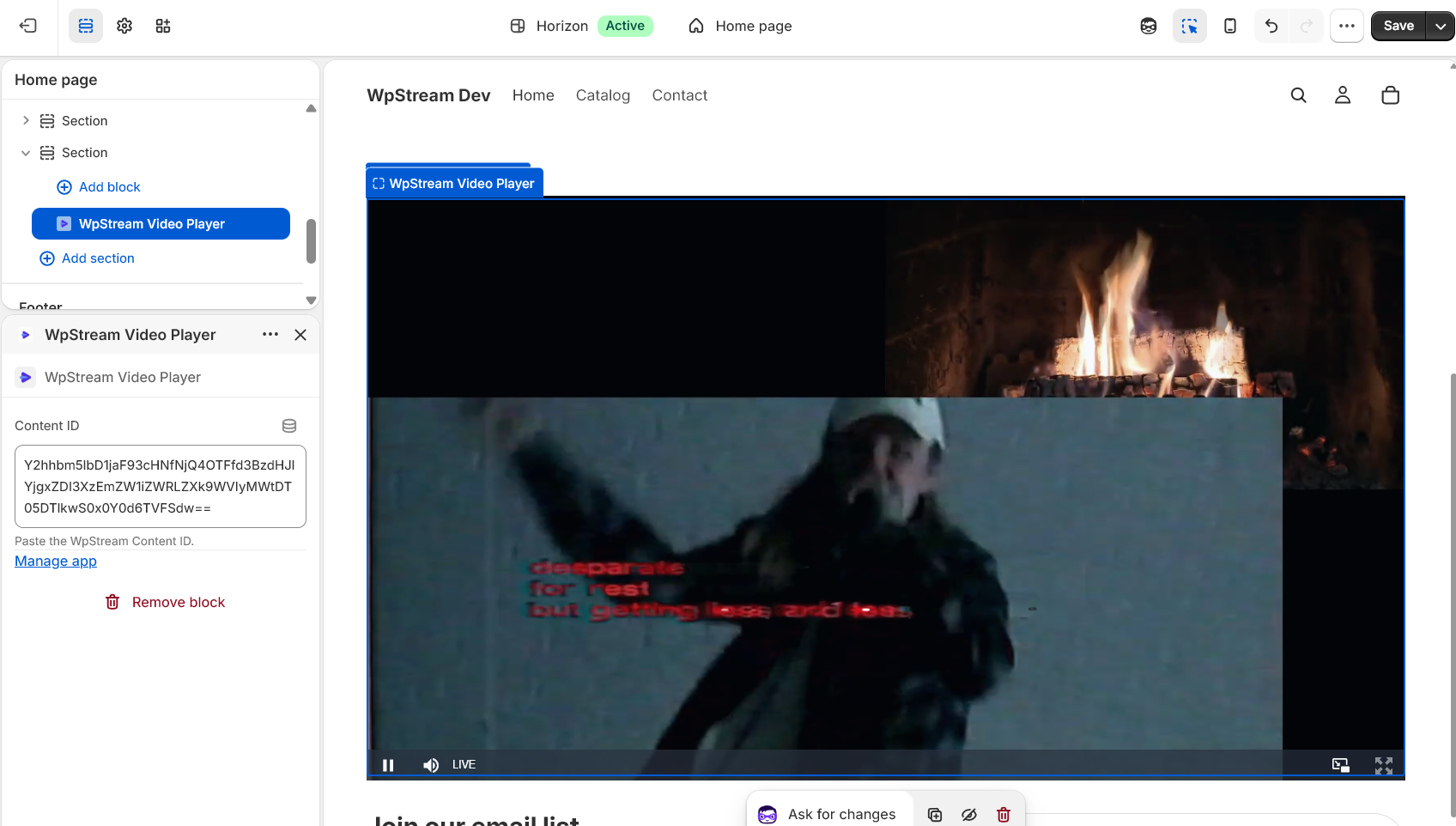
Paste the Content ID and save.
- With the block selected, find the Content ID field in the block settings on the right.
- Paste the Content ID you copied in Step 3.
- Click Save in the top-right of the theme editor.

Paste the Content ID into the block settings. -
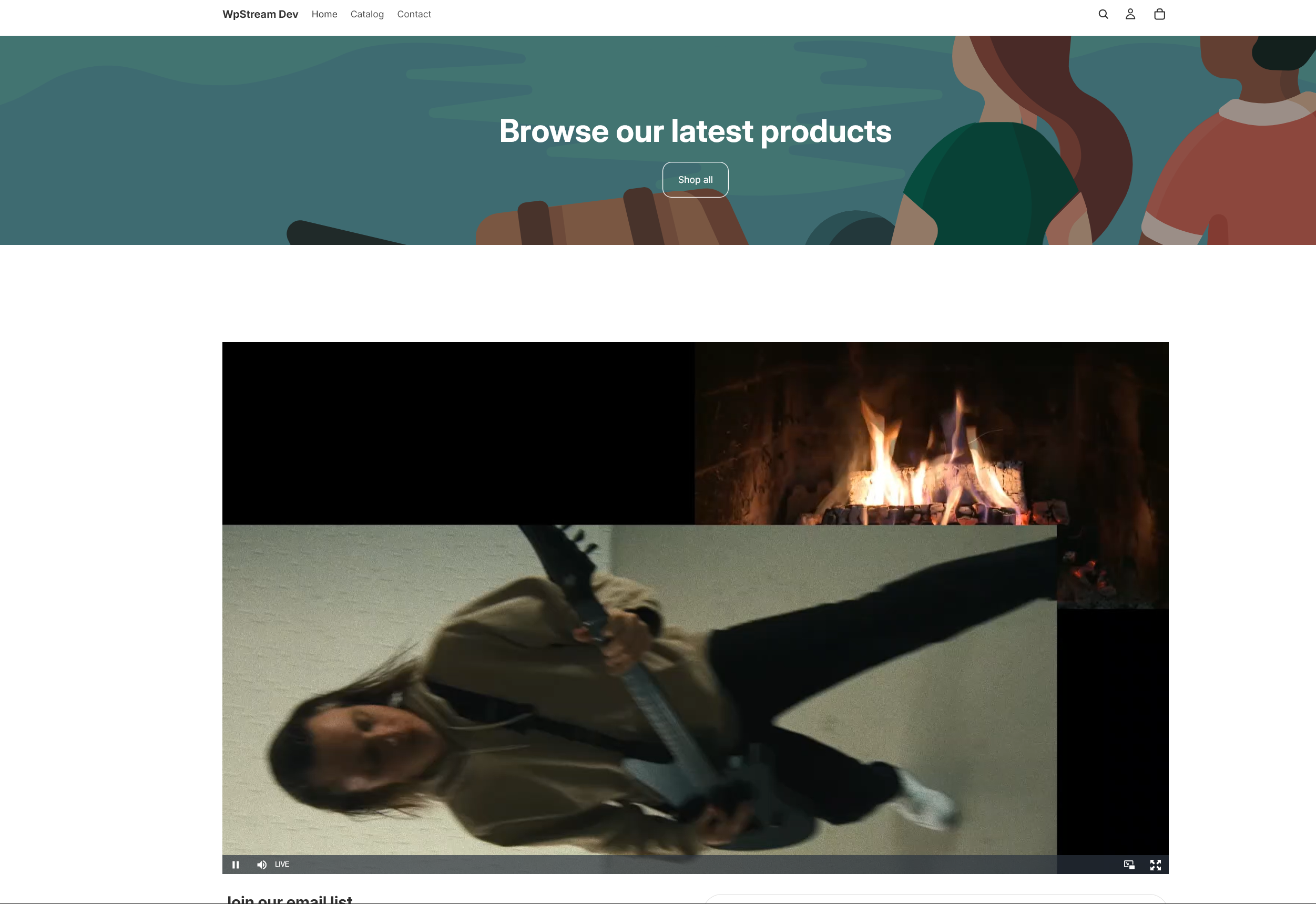
View the player on your storefront. Open the page where you added the block (use View or preview, or visit the page on your live store). The WpStream player loads and plays your live channel or recorded video.
That is the setup finished. To change what plays later, swap that Content ID.

The WpStream player live on the storefront.
Troubleshooting the WpStream Video Player block
Four things go wrong, all with short fixes.
- The block shows “Paste a WpStream Content ID in the block settings.” The Content ID field is empty. Add it in the block settings (Step 5) and save.
- The block shows “Invalid WpStream Content ID.” The value pasted isn’t a valid WpStream Content ID. Re-copy it from your WpStream account (Step 3), making sure you copy the whole value with no extra spaces.
- The block isn’t in the theme editor. Add it manually via Add section > Apps > WpStream Video Player, the same path as the note in Step 4. Different failure from a video that won’t play: the app installed fine, the block just didn’t surface in the customizer.
- The player area is blank on the storefront. Confirm the channel is live (for live content) or the video is published in your WpStream account, then reload the page.
Anything else, email [email protected].
Key Takeaways
- WpStream Video Player is a free Shopify app that adds one theme app block to Online Store 2.0 themes, no Liquid code required.
- A single Content ID field decides whether the block plays a live channel or a recorded video from a WpStream account.
- Setup takes about 10 minutes: install the app, copy a Content ID from WpStream Studio, paste it into the block, and save.
- If the block does not appear in the theme editor, add it manually through Add section, Apps tab, WpStream Video Player.
- The Shopify app is free, but the WpStream account behind it is a separate paid product with a free trial.
Frequently Asked Questions
Is WpStream Video Player free to use on Shopify?
The Shopify app is free. The listing shows a price of Free, and installing WpStream Video Player costs nothing.
The account behind it is not free: you need a live channel or a recorded video for the Content ID to point at, and that is a separate paid product. The trial terms on the pricing page read all features available, no credit card, no time limit. No day count is stated, so don’t plan around one.
Where can I place the video block on my Shopify store?
Wherever you are in the theme editor when you add it. The block goes in through Add section and the Apps tab, so it lands on the template you have open. Shopify is careful here: “App blocks might only be compatible with certain page types,” and the official guidance is to check your theme’s documentation or ask your theme developer. That caveat applies to WpStream Video Player because it is an app block, and the app’s documentation doesn’t narrow it, so test the placement you want first.
Can one video block show both live and recorded content?
Yes, and that is why there is only one field. The Content ID decides it. Point it at a live channel and the block plays live. Point it at a recorded video and the block plays that.
There is no live or recorded toggle in Shopify, because WpStream Video Player does not need to know which kind of content it is holding. Swap the ID, save, and the same block plays something else.
What happens to the block if I switch Shopify themes or my theme updates?
Two different events, and Shopify documents only one. The rule it states covers a theme switch: if you install apps for your theme and later change your published theme, you’ll need to re-activate those apps in the new theme, as they won’t be active by default. So after a switch, add the WpStream Video Player block again and paste the Content ID back in. An update to the same theme isn’t documented, so check the block after one.
Once live video is added to your Shopify store, the real decision is what you point it at. A live channel suits an event with a fixed start time, where the clock does some of the selling. A recorded video suits a demo or a replay that keeps working long after.
Still weighing whether it’s worth doing? The roundup of live shopping platforms is the wider view, and if you also run a WordPress storefront, live shopping for WooCommerce stores covers that side.
Table of Content