
Streaming for any website

Live Stream on Any Website, Replays Included

Copy the code. Paste it on your site. Go live.

Put a live stream on any website that accepts an iframe, with replays from the same channel, or take the ready-made route for WordPress, Shopify, Wix or Astro.

How it runs

Stream live video to your website in three steps

01 · Copy

Copy the player code

Open My Account > Live Channels, pick the channel and find its embed card. The Web Embed tab has a Copy code button.

For a recorded video, use the Share card under My Account > Videos.

02 · Paste

Paste it into your page

Drop the snippet into the HTML block, code block or custom-code element of your site builder or CMS.

On a hand-coded site, paste it straight into the page's HTML, where the player should sit. There's no plugin to install.

03 · Go live

Go live from browser or encoder

Broadcast from the browser, or from streaming software with a custom RTMP destination such as OBS.

That's the whole setup for a live stream on your website: the player on your page plays it while the channel is on air.

Player on your page

One player, any site that takes HTML

WpStream hosts the player page at player.wpstream.net and runs the stream.

The snippet on your site only frames that page, so a live stream on your website needs no video library and no streaming server of your own.

Player and platform

A video player for website owners, hosting included

A standalone player is the kind of library a web developer installs: it plays a file or a stream you already host somewhere else. WpStream works the other way round.

The live channel, the streaming, the recordings and the player come in one account, and the player page is served from player.wpstream.net.

To run a live stream on your website, you go live to a channel, WpStream carries the stream, and the snippet you paste on your page frames the hosted player.

Plans count broadcast, viewer and recording hours. The pricing page answers the video quality question: hours are based on time only, so a sharper picture doesn't cost more hours.

Which code you paste depends on your site. Any HTML page takes the Web Embed iframe.

The Astro package, the Shopify app and the Wix app take a Content ID instead, and WordPress gets the plugin.

Stations, churches and
the agencies that build their sites

Radio and TV stations

Your live program plays on the station's own site, whatever it's built on: a custom CMS, a site builder or plain HTML.

Turn on Record this stream for the shows your audience asks about.

Each recording gets its own code, so last night's show can sit on the program page next to tonight's live player.

Presenter recording a show with a camera and microphone

Churches and faith broadcasters

The Sunday service plays on the church's site, pasted into a code block on whatever site builder the volunteers already use.

Record the service, then post the replay on the page for members who couldn't be there in person.
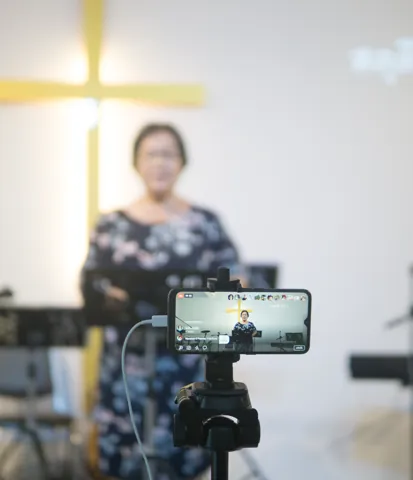
Camera recording a church broadcast

Agencies and web developers

Drop the snippet into each client site, in whatever CMS it runs. The same steps work for a club's match page or a studio's class page.

When a client asks to sell tickets, the answer is the WordPress route, with WooCommerce.

Developer comparing a website on a laptop and monitor

Five routes to a live stream on your website

Four routes start in the same place: a live channel or a recorded video in your WpStream dashboard, with the code copied from its embed card or Share card.

The fifth is the WordPress plugin.

Any HTML site

Copy the iframe from the Web Embed tab and paste it wherever the site accepts HTML: a hand-coded page, a custom app, or the HTML element of your CMS or page builder.

The player opens at 560 by 315 pixels, shrinks with its column and keeps a 16:9 shape. Squarespace, Webflow and the rest are in the table below.

Developer working on website code
WordPress

Install the WpStream plugin and place the player with the WpStream Player block, an Elementor or WPBakery element, or a shortcode.

This is the only route with pay-per-view, subscriptions through WooCommerce, a branded player skin and logo, and lists of your channels and videos on a page.
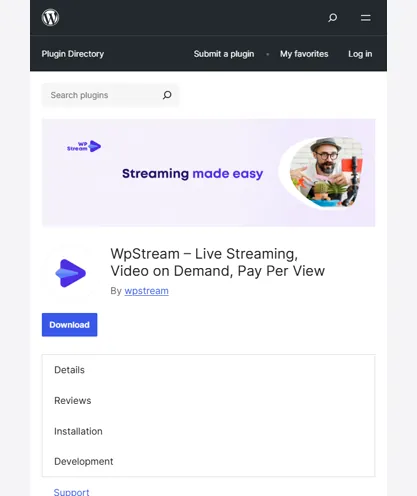
WpStream plugin on the WordPress plugins page
Shopify

Install the free WpStream Video Player app.

It adds a theme app block for Online Store 2.0 themes: place the block in the theme editor, paste the Content ID for Shopify and save.

The same block plays live channels and recorded videos. The step-by-step Shopify guide walks through it.

Shop owner presenting products on camera
Wix

Add the WpStream Live & Video app from the Wix App Market and open the widget's Settings panel. Paste the Content ID for Wix there.

Wix bills the app's own plans, a free one included, separate from wpstream.net.

Web designer reviewing a page layout
Astro

Install @wpstream/astro from npm, import the WpStreamPlayer component and pass the Content ID for Astro as its contentId prop.

The package needs Astro 4 or newer and plays live channels and recorded videos. The Astro guide covers the setup in more detail.


Source code in a website development editor

Put the player on any HTML page

Four steps to stream live video to your website, on any page that takes HTML. You need a WpStream account, a live channel and edit access to the page.

The full embedding guide compares the other ways to embed a live stream.

Site owner reviewing a website layout

Channel

Open the live channel

Go to My Account > Live Channels and open the channel you'll broadcast to, or create one.

On new accounts, the embed card on the channel page holds the Web Embed code, open by default, and three Content IDs.

Hands editing code on a laptop

Copy

Copy the Web Embed code

Click Copy code on the Web Embed tab. That puts the whole iframe on your clipboard: the player address, a 560 by 315 size and a style attribute.

For a recording, open My Account > Videos, pick the video and use the same tab on its Share card.
Code displayed on a development computer

Paste

Paste it where HTML goes

Paste the snippet into an HTML block, a code block, a custom-code element or straight into the page source. Keep the style attribute as it is. It matters on phones.

Presenter recording a broadcast on camera

Live

Go live and check the page

Start broadcasting to the channel from the browser or from OBS.

Then open the published page and watch the stream the way visitors will, not only in the editor preview: some embeds show up only on the live site, as Webflow's help page notes.

Check the page at phone width too, before you send the link to anyone.

Before you publish the page

Keep the style attribute

It holds max-width 100% and the 16:9 ratio. If an editor strips it, the 560 by 315 size still keeps the player's shape, but the player stops shrinking on narrow screens.

Add a title

MDN notes that people using assistive technology can use an iframe's title attribute to label its content. The snippet ships without one, so add a title such as your channel name.

Give it room

The player opens 560 pixels wide and shrinks to fit a narrower column. Want it bigger? Raise the width value in the code.

As long as the style attribute stays on the iframe, the height follows the 16:9 ratio.

One code per channel or video

Each live channel and each recording has its own code. To change what plays on the page, paste a different code or Content ID in place of the old one.

Settings stay on WordPress

The dashboard's Auto play, Start muted and Display viewer count toggles apply on WordPress only. Pasted code plays without them.

Wix shows HTTPS only

Wix's help page says its embed element displays only HTTPS codes and URLs. The WpStream snippet already points at an https address, so paste it unchanged.

Live, then replay

Record the live, post the replay

Turn on Record this stream while the channel is stopped, before you go live.

After the stream ends, the recording shows up under Videos with its own Share card, carrying its own Web Embed code and Content ID.

Paste that code on the page, next to the live player or in its place: a program page for a station, a sermon page for a church, a class page for a studio.

Two codes, one channel: the live stream and its replay.

Where to paste

Where does the code go on your site builder?

Most site builders have a box for raw HTML, each with its own name, and that box is where the live stream on your website goes.

The table below lists the spot and the plan it needs, taken from each builder's help page or the WpStream app listing. That's the builder's rule, not WpStream's.

Squarespace's help center says iframes in code blocks need a Core, Plus, Advanced, Business, Commerce Basic or Commerce Advanced plan, and that embed blocks want services that use the oEmbed standard.

So the code block is the spot for the snippet. Webflow's Code Embed element needs a Core, Growth, Agency or Freelancer Workspace, or a Site plan, and holds up to 50,000 characters.

The Shopify, Wix and Astro routes run on the Content ID instead of HTML, through the WpStream app block, the WpStream Live & Video app and the Astro package.

WordPress uses the plugin, not a paste, so it isn't in the table.

PlatformWhere the code goesPlan neededNotes
Platform: Any HTML site or custom appWhere the code goes: Web Embed iframe in the page HTMLPlan needed: None on the site sideNotes: Keep the style attribute
Platform: SquarespaceWhere the code goes: Web Embed iframe in a Code blockPlan needed: Core, Plus, Advanced, Business, Commerce Basic or Commerce Advanced planNotes: Embed blocks want oEmbed; use a Code block
Platform: WebflowWhere the code goes: Web Embed iframe in a Code Embed elementPlan needed: Core, Growth, Agency or Freelancer Workspace, or a Site planNotes: 50,000-character limit; some embeds show only on the live site
Platform: WixWhere the code goes: WpStream Live & Video app, or Embed HTMLPlan needed: Free plan in the app; Wix bills its own plansNotes: Wix says Embed HTML isn't responsive; prefer the app
Platform: ShopifyWhere the code goes: WpStream Video Player app block, with the Content ID for ShopifyPlan needed: Free app; an Online Store 2.0 themeNotes: One block plays live and recorded video
Platform: AstroWhere the code goes: WpStreamPlayer component from @wpstream/astro, with the Content ID for AstroPlan needed: Astro 4 or newerNotes: Installed as an npm package
One account, any website

Every live stream on your website is metered in hours, by time only.

Lite

Lite, $24 a month or $190 a year: 100 broadcast and 500 viewer hours a month, 200 viewers at once, 5 channels, 25 recording hours; a $36 one-time pack of the same hours doesn't expire.

By our math, a weekly 2-hour service watched in full by 50 viewers uses 8 to 10 broadcast and 400 to 500 viewer hours a month.

A five-Sunday month takes all 500 viewer hours, so a watched test broadcast that month would go over. Recording each service fills the recording hours in about three months.

Plus

Plus, $59 a month or $490 a year: 250 broadcast and 2,000 viewer hours a month, 1,000 viewers at once, 15 channels, 100 recording hours; an $89 one-time pack of the same hours doesn't expire.

By our math, an agency's 3 client channels, each with a weekly 1-hour event watched in full by 100 viewers, use 12 to 15 broadcast and 1,200 to 1,500 viewer hours a month.

Stored recordings grow about 13 hours a month, filling the 100 recording hours in about seven to eight months.

The trial

New accounts start on a free trial with 100 viewer, 20 broadcast and 10 recording hours and all features. Building on Wix?

The WpStream app there has its own plans, billed by Wix. See the pricing page.

Launch check for a client site

Nine checks an agency or web developer runs before handing the page over to the client.

Run them on the published page, not in the editor, and run them before the first real broadcast, not during it.

Nine checks before launch

01

The channel page shows the Web Embed tab with a code in it. New accounts get the embed code and the Content IDs.

If the Web Embed tab or the Content ID tabs are empty, or the code doesn’t point at player.wpstream.net, contact WpStream support before launch day.

02

The client’s plan on the site builder allows iframes or custom code. Squarespace and Webflow both tie this to specific plans, so check the builder’s own help page.

03

The code sits in an HTML, code or custom-code block, not a text block.

Use the element your builder names for HTML or code, then confirm the player shows on the published page.

04

The style attribute survived the editor. Inspect the player on the published page: max-width 100% and the 16:9 ratio should still be on the iframe.

05

A title attribute names the player, for example the channel or program name, so people using assistive technology know what the frame holds.

06

The page was checked at phone width on the published site, not only in the builder’s preview, since some embeds show up only on the live site, as Webflow’s help page notes.

07

A test broadcast played on the published page before the first real event, from the same browser or encoder setup the client will use on the day.

08

Record this stream is on if the client wants replays. After each event, the recording’s own code goes on the page, because the live code plays the channel, not the recording.

09

The client knows the pasted player is free to watch for anyone who opens the page. Tickets or members-only viewing mean the WordPress route.

Nine checks, and the client's page is ready for the first broadcast.

WordPress-only

What stays on WordPress, and why sellers go there

For a live stream on any website that isn't WordPress, pasted code and the Content ID show the player, and that's the whole job. Anyone who can open the page can watch.

There's no viewer paywall and no login check, whether the page lives on Squarespace, Wix, Shopify or a hand-coded site.

The dashboard's Auto play, Start muted and Display viewer count toggles don't reach pasted code today. On WordPress, the plugin passes them to the player.

The branded player skin and logo, and the lists of your channels and videos on a page, are plugin features too.

Selling tickets, pay-per-view or subscriptions? That runs through WooCommerce on WordPress, with the WpStream plugin, whose page says: "Pay-per-view requires WooCommerce."

If a client needs paid access, WordPress is the site to build, and the pasted player stays the free-to-watch option.

FeaturePasted code or Content IDWordPress plugin
Feature: Live channels and recorded videosPasted code or Content ID: Yes, from the Web Embed tab or a Content IDWordPress plugin: Yes, through the player block, shortcode or widget
Feature: Where the player sits and its sizePasted code or Content ID: You set it in the page or site builderWordPress plugin: WpStream Player block, shortcode, Elementor or WPBakery element
Feature: Autoplay, start muted, viewer countPasted code or Content ID: Dashboard toggles don't apply todayWordPress plugin: Passed to the player by the plugin
Feature: Pay-per-view and subscriptionsPasted code or Content ID: No viewer paywall: anyone who opens the page can watchWordPress plugin: Pay-per-view and subscriptions with WooCommerce
Feature: Branded player skin and logoPasted code or Content ID: NoWordPress plugin: Yes, a branded skin and logo
Feature: Channel and video lists on a pagePasted code or Content ID: NoWordPress plugin: List shortcodes for channels and for videos

More on streaming to websites

Questions

Live stream on any website: questions

Any site that accepts an iframe or custom HTML can carry the live stream. On Squarespace that’s a code block on a Core, Plus, Advanced, Business, Commerce Basic or Commerce Advanced plan.

On Webflow it’s the Code Embed element on the Workspace and Site plans its help page lists.

Wix has the WpStream Live & Video app, Shopify the WpStream Video Player app, Astro the @wpstream/astro package, and WordPress the plugin.

Open My Account > Live Channels, pick the channel and go to its embed card. The Web Embed tab is open by default: click Copy code.

For a recording, open My Account > Videos, pick the video and use its Share card. New accounts get the embed code and the three Content IDs in both places.

If the Web Embed tab or the Content ID tabs are empty, or the code doesn’t point at player.wpstream.net, contact WpStream support.

No. The WpStream channel’s code plays the channel.

With Record this stream turned on, the recording shows up under Videos after the stream ends, with its own Share card, its own Web Embed code and its own Content ID.

Paste that second code on the page when you want the replay there, next to the live player or instead of it.

The WpStream player stays on the page, and it doesn’t play a stream until the channel is on air.

Add a line of page text next to the player with the date and time of the next broadcast.

That way, people who land on the page between broadcasts know when to come back, and nobody wonders whether the site is broken.

No. When the player runs from pasted code or a Content ID integration, there’s no viewer paywall: anyone who can open the page can watch.

Pay-per-view and subscriptions run through WooCommerce on a WordPress site with the WpStream plugin, which checks each viewer’s purchase before the player plays.

If you need to charge for access, build that page on WordPress.

Not today. The Auto play, Start muted and Display viewer count toggles in the WpStream dashboard don’t reach a pasted iframe. On WordPress, the plugin passes them to the player.

Browsers add their own rules: Chrome’s autoplay policy says “Muted autoplay is always allowed”, while autoplay with sound is allowed only in the cases that policy lists.

Yes, when the builder keeps the code’s inline style.

The snippet sets 560 by 315 pixels plus max-width 100% and a 16:9 aspect ratio, so the player shrinks with its column and keeps its shape.

If an editor strips the style, the 560 by 315 size still keeps the 16:9 shape, but the player stops shrinking on narrow screens.

Wix is the exception to plan for: its help page says the Embed HTML element isn’t responsive, so use the WpStream Live & Video app there.

A Content ID is one string from the Content ID tabs on a WpStream channel’s embed card or a video’s Share card.

The Astro package, the Shopify app and the Wix app take it instead of HTML, and it tells the player which live channel or recorded video to show.

Each channel and each recording has its own Content ID, just as each has its own iframe. Copy it exactly as it is: you never decode it or edit it by hand.

Ready when you are

Start your free trial

Try live broadcasting and replays on your website.