
Wix live streaming

Wix Live Stream: A Practical Guide

Add the app. Create your channel. Go live on your Wix site.

Live channels and replays on a Wix page with the WpStream Live & Video app, compared with Wix Video, plus what it can’t do today.

How it runs

From the App Market to your first broadcast

01 · Install

Add the app from the App Market

Add WpStream Live & Video from the Wix App Market. A player widget lands on your site and your WpStream account is created for that site, with no separate sign-up.

02 · Channel

Create a channel inside Wix

Create a channel or upload a video on the app's page in your Wix dashboard, then pick it in the widget's Settings panel.

03 · Go live

Go live from the browser or OBS

Publish the page, then broadcast from your browser with camera and mic, or push from OBS with the RTMP server and stream key.

Inside your Wix dashboard

Your channels and videos, managed without leaving Wix

The app's dashboard page lists every channel and video on your account.

Create a channel, upload a video, preview it and go live from one screen, in the same Wix dashboard where you run your site.

What the WpStream app adds to your Wix site

Video Player Pro, a video player on the Wix App Market, lists no live channel feature.

WpStream Live & Video on the Wix App Market adds a Wix video player for live channels: a widget on your page, a Settings panel to pick what it plays, and a dashboard page to run your channels, all inside Wix.

The WpStream Player widget

Installing the app places one WpStream Player widget on your site for you. For a player on a second page, drag another copy in from Add Elements in the Wix editor.

The widget stretches to the width of its section and keeps a 16:9 picture at any width.

Site owner reviewing a website layout
Pick a channel or video in Settings

Select the widget and open Settings. The Live Channel and VOD tabs list your channels and videos: click one and the widget plays it. Refresh reloads the list.

Create new channel or Create new video opens the app's dashboard page in a new tab, and the list updates when you come back.

An advanced Paste a Content ID field stays as a fallback.
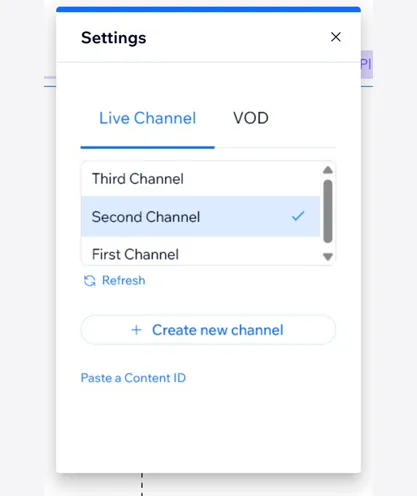
Live Channel and VOD selection in the WpStream Wix Settings panel
Channels and videos on one dashboard page

On the app's page in your Wix dashboard you create channels, upload videos, preview, search and delete.

A live channel is stopped before it's deleted, and the app always asks you to confirm.

Each channel tile shows its status: On Air, Starting, Paused or Off Air. That status is for you, not for your visitors.
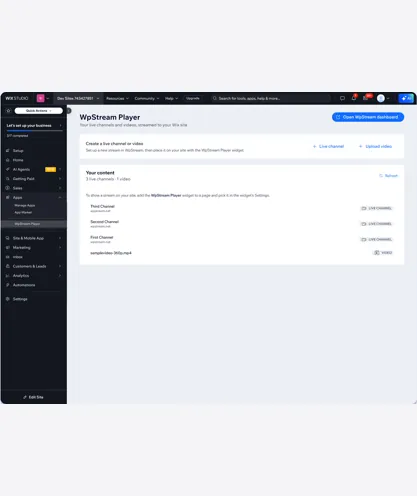
Live channels and videos in the WpStream Wix dashboard
Go live from the browser or an encoder

Click Go live on a channel and pick one. From your browser: camera and mic, no extra software. With an external encoder: push from OBS, vMix or a hardware encoder.

The encoder option shows the RTMP server and the stream key, each with a copy button, ready to paste into OBS.

Presenter broadcasting from a camera and microphone
Your plan, measured in hours

The Your Plan card shows meters for broadcast, viewer and recording hours. The WpStream Dashboard button signs you in to wpstream.net in one click.

More hours: Upgrade for more resources opens Wix's own upgrade page for the app, so the plan is billed through your Wix account.


Planner and phone used to schedule shows and manage time

Set up your Wix live stream in four steps

No code: everything happens in the Wix editor and the Wix dashboard.

Site owner working on a website layout

App Market

Add WpStream Live & Video

Find the app on the Wix App Market and add it to your site. The player widget is placed on your site, and a WpStream account is created for this Wix site.

You start on the free Starter plan.
WpStream channels in the Wix dashboard

Dashboard

Create a channel

On the app's dashboard page, give the channel a title and switch on Record this stream if you want a replay. Display viewer count and Autoplay are already on.
WpStream player Settings panel in Wix

Editor

Pick it in the Settings panel

In the Wix editor, select the widget, open Settings and choose your channel on the Live Channel tab. Place the widget on the page where visitors should watch, then publish the site.

Presenter recording a broadcast from a desk

Go live

Broadcast from the browser or OBS

Open Go live on the channel. Choose your browser (camera and mic) or an external encoder: copy the RTMP server and stream key into OBS or vMix and start streaming.

Before your first Wix live stream

Recording is your choice

Record this stream is off by default. Turn it on for the channel before you go live if you want to keep a replay.

Changing it resets the channel

Switching recording on or off resets the channel. The app warns that you'll need to reconfigure OBS, and a browser broadcast has to restart.

Autoplay starts muted

With Autoplay on, the player starts muted so browsers let it play. Visitors turn the sound on when they want it.

Swap without re-embedding

Pick another channel or video in the Settings panel and the same widget on the page plays it. Nothing to copy or paste.

Watch your hours

The Your Plan card shows broadcast, viewer and recording hours used, so you know how much of the free Starter plan is left.

Cancel through Wix

Cancel under Premium Subscriptions in your Wix account: Cancel App, then Cancel auto renew. The plan stays active until the billing cycle ends.

Replays and uploads

Keep the replay on the same Wix page

Turn on Record this stream before your Wix live stream, and the broadcast is saved as a video on your account.

Recorded videos use your WpStream recording hours, not your Wix media storage.

If the video already exists, upload it from your computer on the dashboard page and follow the progress bar.

Then pick it on the VOD tab, in the same widget or a second one under the live player.

Wix Video Live

Is Wix Video Live enough for your stream?

Start with what Wix gets right.

Wix Video is built in, free to start, and it can charge: a live stream can be paid (buy or rent), and channels can be sold as subscriptions with Pricing Plans (Wix Help Center).

For short streams from OBS, that may be all you need.

The walls are in Wix's own docs. One stream runs up to 10 minutes on free Wix Video and up to 3 hours on a Premium plan (About Live Streaming).

Live streaming from the Wix mobile app is discontinued.

You can use any encoder that supports custom keys, but Wix only supports and troubleshoots OBS Studio.

Other encoders may not connect, and the stream key resets every hour, so yesterday's key in OBS won't work today (Live Streaming from Your Desktop).

Then there's storage. Every live video is saved to your Video Library and counts toward your media storage, and with no storage left you can't go live.

What you needWix Video LiveWpStream app on Wix
What you need: Longest single broadcastWix Video Live: 10 minutes on free Wix Video, 3 hours on PremiumWpStream app on Wix: No per-stream time limit documented; the plan meters broadcast hours
What you need: How you go liveWix Video Live: An encoder; live from the Wix mobile app is discontinuedWpStream app on Wix: Your browser with camera and mic, or an RTMP encoder
What you need: Encoder supportWix Video Live: Any encoder with custom keys; only OBS officially supportedWpStream app on Wix: OBS, vMix or a hardware encoder
What you need: Stream keyWix Video Live: Resets every hourWpStream app on Wix: Regenerated when you reset the channel
What you need: RecordingWix Video Live: Automatic, counts toward your Wix media storageWpStream app on Wix: Your choice per channel, uses recording hours
What you need: Charging visitorsWix Video Live: Built in: buy, rent, channel subscriptionsWpStream app on Wix: Not in the player; use Wix Pricing Plans and a members-only page

What visitors see in your Wix video player

The widget loads WpStream's hosted player inside your page, for a live channel or a replay.

Options such as autoplay and the viewer count are set per channel on the app's dashboard page.

The same player also runs on Shopify and Astro sites.

16:9 at any width

The player fills the width of its section and keeps a widescreen picture, in a full-width strip or a narrow column.

Fullscreen

Visitors can open the broadcast full screen from the player, for a service, a match or a class.

Picture-in-picture

Visitors can keep the broadcast in a small floating window while they read the rest of your site.

Autoplay, muted

On by default. With autoplay on, the player starts muted, and visitors turn the sound on themselves.

Viewer count

On by default and set per channel: Display viewer count shows the number of concurrent viewers on the player.

Loads when needed

The player loads only when visitors scroll to it on your page.

Plans measured in hours

Billed through your Wix account. Measured in broadcast and viewer hours.

Lite

Lite: 100 broadcast hours and 500 viewer hours a month, 5 live channels, up to 200 viewers at once. Example: a 90-minute weekly service is about 6 broadcast hours a month.

If 40 people watch each service in full, that's about 240 viewer hours a month.

Plus

Plus: 250 broadcast and 2,000 viewer hours a month, 15 live channels, 1,000 viewers. Paid hours reset to the plan each month; unused hours don't carry over.

The trial

Installing the app starts you on the free Starter plan: 20 broadcast hours, 100 viewer hours, 1 live channel, 50 viewers. To upgrade, click Upgrade for more resources in the app.

A Wix plan belongs to that Wix site.

Paid or private viewing

How do you charge for access on Wix?

Two payments, two systems. You pay WpStream through Wix app billing. Your visitors, if you charge them, pay you through Wix.

The WpStream player has no paywall of its own, so you restrict the Wix page it sits on.

"Just connect your pricing plans to your members-only pages to set up a paywall" (Wix Help Center).

You need the Pricing Plans app, a Members Area and a site that can take money: "You must upgrade your site to a Premium or Studio plan that supports payments in order to accept payments" (Accepting Payments).

In Pages & Menu, open the page's Settings, then Permissions, Site members, Specific members and Members with plan subscriptions.

For free but private viewing, use a password-protected page; those pages don't appear in search results. For tickets, Wix Events can put an online event on a restricted page.

Either way, access is controlled at the Wix page level.

Who runs a Wix live stream
with WpStream

Churches and faith broadcasters

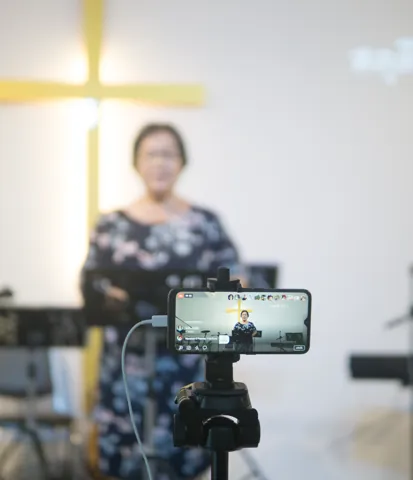
A volunteer streams the Sunday service from a laptop browser at the back of the sanctuary, with Record this stream on.

Members at home watch live on the church's Wix page, and the sermon replay goes on the same page afterwards.
Camera recording a worship broadcast

Local radio and TV stations

A station pushes long program blocks from vMix or a hardware encoder over RTMP, with a channel per show.

Wix Video caps one stream at 3 hours; on WpStream no per-stream time limit is documented, and each block counts toward the plan's broadcast hours.

Presenter recording a local online program

Clubs and fitness studios

A club streams a match, or a studio streams a class, for members only.

The player sits on a members-only page tied to Wix Pricing Plans, and replays of past classes sit on the same page.

Fitness instructor filming an online class with a tripod camera

Honest limits

What does not work on Wix today

Better to know before you install. The WpStream app on Wix does not do these today:

  • No paywall, pay-per-view or tickets inside the player. Use Wix Pricing Plans and a members-only page instead.
  • Chat, comments and polls aren't in the player.
  • Selling products during a broadcast isn't possible.
  • No live badge for visitors. On Air, Paused and Off Air show on your dashboard only.
  • Analytics inside Wix stop at the plan meters. The WpStream Dashboard button takes you to wpstream.net for more.
  • No broadcasting from a mobile app. Go live from a computer browser or an encoder.
  • No carry-over: a Wix plan belongs to one Wix site and doesn't move to a WordPress WpStream account.

Want a replay? Turn recording on. Want to charge? Make the page members-only in Wix.

More on Wix live streaming

Wix FAQ

Wix live streaming questions

Add WpStream Live & Video from the Wix App Market, create a channel, pick it in the widget’s Settings panel, publish the page and go live from your browser or OBS.

Wix Video Live is the built-in alternative: it needs an encoder, and OBS is the only one Wix officially supports.

With Wix Video, one stream runs up to 10 minutes on free Wix Video and up to 3 hours on a Premium plan, per the Wix Help Center.

For the WpStream app, no per-stream time limit of that kind is documented; the plan meters broadcast hours, so a 4-hour service counts as 4 broadcast hours.

Not without an encoder on Wix Video: you can use any encoder that supports custom keys, but OBS Studio is the only one Wix supports, and others may not connect.

The WpStream app has a From your browser option: camera and mic, no extra software.

Wix discontinued live streaming from its mobile app. The WpStream app doesn’t have a mobile broadcasting app either.

Go live from a computer browser with camera and mic, or send the broadcast from an encoder such as OBS, vMix or a hardware box.

Yes, with Wix’s own tools. Wix Video can charge by itself: buy, rent or channel subscriptions.

The WpStream player has no paywall, so put it on a members-only page tied to Wix Pricing Plans. You need a Members Area and a Wix plan that accepts payments.

For free but private viewing, a password-protected page works.

With Wix Video, every live video is saved to your Video Library and counts toward your media storage. With the WpStream app, only when Record this stream is on for that channel.

Replays use recording hours, and you pick them on the VOD tab of the widget’s Settings panel.

In hours: broadcast hours for time live, viewer hours for total watch time, recording hours for saved video.

The free Starter plan has 20 broadcast hours, 100 viewer hours, 1 live channel and 50 viewers.

Paid plans are billed through your Wix account; see them on the WpStream Live & Video listing.

Yes. Wix’s Single Video Player takes links from YouTube, Vimeo, Facebook, Dailymotion or Twitch.

Two catches: YouTube, Vimeo and Facebook videos can’t be sold, and with a pricing plan on a Wix Video channel they stay visible to all visitors.

For a Wix live stream you broadcast yourself, the WpStream widget plays your channel directly on your own page.

Ready when you are

Start your free trial

Try live broadcasting and replays on your website.