

Live Streaming Ecommerce

Live Streaming Ecommerce on Your Own Store

Show the product. Take the order. Keep the replay.

A WooCommerce store sells during a live stream by showcasing products beside the video player. Orders go through your own checkout, using a clear streaming plan and scheduled hours.

How it runs

Show it live, sell it in your store

01 · Setup

Add the player

Install the WpStream plugin and WooCommerce on your WordPress site. Create a live channel.

Place the player on a product page or use the Hello WpStream theme's demo. Activate "Record Live Stream" before going live.

02 · Go Live

Stream via browser or OBS

Use a webcam or phone in any modern browser. Alternatively, stream from OBS or Larix using your channel's server URL and stream key.

03 · Checkout

Orders in WooCommerce

Shoppers can view the product card next to the player. They can add items to their cart and pay at your checkout. Orders will appear in WooCommerce like any other.

Sell on Your Site

Your show, your products, your checkout

Run live sales on your WordPress store and link featured products directly to your shop. Enable Lock to Website to keep the stream on your site.

Live Commerce, Defined

How does live commerce work on your own store?

Live commerce involves selling products during a live video. A host shows products while shoppers watch, ask questions, and buy. The video plays on your site, with products displayed alongside. All orders go through your WooCommerce cart and checkout.

Market Data: Grand View Research estimates the global live commerce market at USD 172.86 billion by 2025. A McKinsey study found that in 2021, apparel and fashion made up 36% of live shows, with beauty and food around 7% each.

Marketplaces and social apps host their own live shopping. For options, check our guide to live shopping and the best platforms.

RouteWhat the shopper doesWhere checkout happensWhat you install
Route: Hello WpStream Live Shopping demoWhat the shopper does: Watches the stream page, opens a product card in the Products list, adds it to the cart on the product pageWhere checkout happens: Your WooCommerce cart page opens after Add to Cart, then your checkoutWhat you install: The Hello WpStream theme with its one-click demo import, WpStream plugin, Elementor, WooCommerce; Better Messages for chat
Route: Player on your own product or landing pageWhat the shopper does: Watches on that page, then uses its Add to Cart or the products you linkWhere checkout happens: Your checkout, from that page's Add to CartWhat you install: WpStream plugin and WooCommerce; the WpStream Player block, Elementor element or shortcode
Route: Paid live access (a ticketed show or members-only sale)What the shopper does: Buys the Live Channel product, then watches the showWhere checkout happens: Your checkout; the watch link arrives in the confirmation email and My OrdersWhat you install: WooCommerce for pay-per-view; WooCommerce Subscriptions for recurring access
Route: Replay page after the showWhat the shopper does: Watches the recording beside the same productsWhere checkout happens: Your checkout, from the same product pages as the live showWhat you install: Record Live Stream turned on, then a free or pay-per-view video on demand

What the Shopper Sees

The Live Player

The show plays on your store page. Enable "Display Viewer Count" to show the number of viewers.

Shopper watching a clothing presentation on a phone

Products Beside the Stream

The demo showcases a products list next to the player. Each card displays the product image, name, and price, linking to its product page.
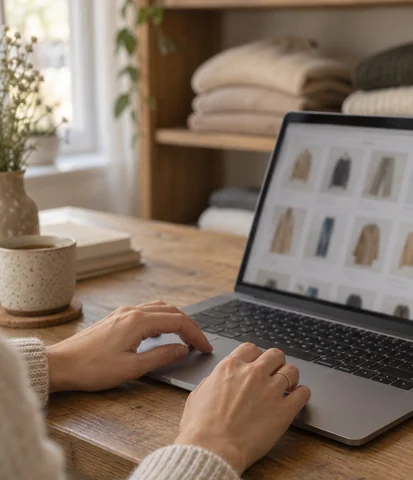
Shopper browsing product thumbnails on a laptop

Cart and Checkout

Shoppers can select a size or colour and add items to their cart. The demo links directly to your cart page, ensuring purchases happen in your store. Paid orders appear in WooCommerce.
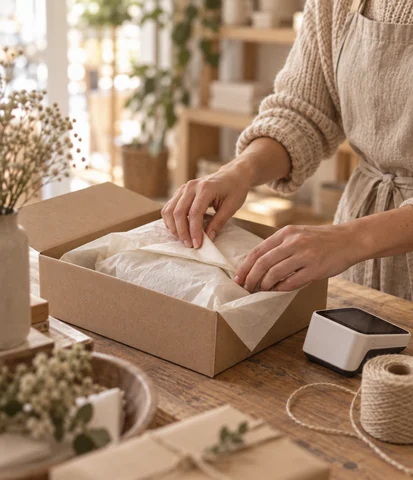
Small shop owner packing a customer order

Gear for a Store Studio

A phone or webcam is enough for your first sale show. With "Auto TURN ON," the encoder starts the channel automatically for your next live stream.

Phone or Webcam

Works in Chrome, Safari, Firefox, and Edge. Use the camera and microphone of your choice. Larix Broadcaster is available for iPhone and Android.

Soft Front Light

Position soft light slightly above eye level. This helps with lighting, especially for the selfie camera.

Clip-on Microphone

An external mic ensures clear audio, even when the host turns to grab products.

Product Close-up

Add a second camera for product details. Ensure both the host and product remain in frame.

OBS Scenes

Create scenes for the host, product close-up, and price card. Use Studio Mode to prepare scenes before they go live. Set the keyframe interval to 2 seconds.

Run a Sale Show from Promo to Replay

Two people manage a store show effectively. One hosts while the other switches scenes and answers chat. Add a moderator for busy chats.

Start with a test show featuring a low-selling product. Promote the show to your email list, on your site, and social media.

Shop owner planning a sale with a laptop and parcels

Before

Promote the show

Inform customers via email, banners, and social media. Answer these questions: What’s on the show? What’s in it for them? When do you go live?
Shop owner setting a phone and light to film the collection

Rehearse

Test with one product

Conduct a short test stream with a low-selling product. Check scenes, light, sound, and product links.
Fashion host presenting clothes to a video camera

Live

Show, Point, Price, Stock

Keep both the host and product in view. Discuss quality, fit, and function. Announce the price and stock levels.
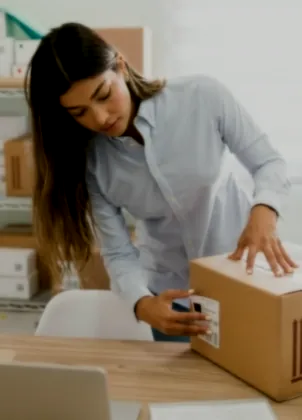
Shop owner preparing an online order for delivery

After

Publish the Replay

Create a replay page with the same products. Notify shoppers they can watch and shop again.

Example 45-minute Sale Show

0 to 5 min: Welcome

The host introduces the collection and shows product placement. The second person ensures chat works.

5 to 15 min: First Product Demo

Switch to a close-up scene to detail the first item, including its label and price.

15 to 25 min: Sizes and Colours

Discuss each variation, noting low stock situations.

25 to 35 min: Shopper Questions

The moderator relays chat questions. The host answers on camera.

35 to 40 min: Last Call

Announce low-stock items and restock dates. Start the last call early.

40 to 45 min: Close

Inform viewers where to find the replay, encourage checkout completion, and announce the next show date.

Orders and Stock

What happens to stock and orders during a drop?

Every sale from the show is a regular WooCommerce order. Payments trigger stock updates, just like any other day.

Enable stock management to automatically adjust items sold. Set each size or colour with its own stock.

The setting "Only show stock when low" displays lines such as "Only 2 left in stock", which the host can announce.

"Hold Stock" retains items for unpaid orders for a set time before releasing them.

After the Show

The replay stays on your store

Ensure "Record Live Stream" is enabled before starting the channel. After the show, the recording appears under WpStream, then Recordings, ready for conversion to video on demand.

Pricing Plans

Plans sized in broadcast, viewer and recording hours

Lite

Lite: $24/month or $190/year. Includes 100 broadcast and 500 viewer hours, 200 viewers, and 25 recording hours.

Plus

Plus: $59/month or $490/year. Includes 250 broadcast and 2,000 viewer hours, 1,000 viewers, and 100 recording hours.

The trial

Free trial offers 100 viewer, 20 broadcast, and 10 recording hours with full features.

Plan Hours

How many hours does a weekly sale show use?

Three metrics matter: broadcast hours (time live), viewer hours (total watch time), and recording hours (stored replays).

Example: One-hour show each Thursday, five shows in a busy month, and 60 viewers live. You’ll need to track viewer hours carefully.

MeterWhat the show usesLite includesFits?
Meter: Broadcast hoursWhat the show uses: 5 shows + 5 tests of 15 minutes = 6.25Lite includes: 100 a monthFits?: Yes
Meter: Viewer hoursWhat the show uses: 300 live + 100 replay = 400Lite includes: 500 a monthFits?: Yes, the tightest meter
Meter: Simultaneous viewersWhat the show uses: 60 at peakLite includes: 200Fits?: Yes
Meter: Recording hoursWhat the show uses: 5 more for each month of kept replaysLite includes: 25 storedFits?: About 5 months, then delete old replays or move to Plus
Meter: Live channelsWhat the show uses: 1Lite includes: 5Fits?: Yes

Nine Checks Before Your First Live Sale

Conduct a thorough check of your store and channel before the show. Each point references the specific setting for easy fixing.

Store checklist, nine points

01

Products are ready: prices, photos, sizes, and colours set as variations with their own stock.

02

Place the player on a product page or import the Live Shopping demo with the Hello WpStream theme.

03

Turn on Record Live Stream in Channel Settings before activating the channel.

04

Enable Lock to Website so the stream plays only on your site, not elsewhere.

05

Chat is set up: Better Messages is ready, shoppers must log in to post, and one person is assigned to respond.

06

Keep Low Latency off unless you need quick timing. It’s still in beta, and shoppers on weak connections may experience buffering.

07

Run a speed test at showtime. Ensure the bitrate is below the lowest reading and set the keyframe interval to 2 seconds.

08

Do a short test stream with a low-selling product. It uses broadcast hours, so keep it brief.

09

Invite shoppers: WpStream doesn’t bring them, so email your customers, post on social media, and add a site banner.

Your store, your checkout, your replay.

More on Live Shopping

Questions

Live streaming ecommerce questions, answered

Not in the video itself. With WpStream, products appear alongside the player as linked cards with an image, name, and price. Shoppers can open a product, add it to the cart, and pay via your WooCommerce checkout before returning to the stream page. Orders go into WooCommerce like any other sale.

A phone or webcam, a soft light in front of the host, and a clip-on microphone are enough to start. Go live from the browser, or use OBS or Larix with your WpStream channel’s server URL and stream key. You can add a second camera for close-ups later and run a speed test before each show. Our streaming equipment guide lists full kits.

Yes, live streaming e-commerce works on your own store. The WpStream player can go on any page of your WordPress site, with products alongside it. Orders go through WooCommerce like any other sale. For options between marketplaces, social apps, and your site, see live shopping. On Shopify, read how to add live video.

No, a store owner or staff member who is comfortable on camera can host. A second person can manage scenes and chat. If the host isn’t the site admin, WpStream allows you to choose user roles to broadcast, so staff can go live from their own login. Start with short shows at a regular time.

Usually not. A normal stream reaches shoppers about 20 seconds after the room. Low Latency (beta) reduces that to roughly 2 to 5 seconds, but shoppers on weak Wi-Fi or mobile data may experience buffering. For a drop, your stock settings protect the last items, not the delay.

If Record Live Stream was on before activating the channel, the recording will appear in your Recordings list. You can turn it into a free or pay-per-view video on demand and place it beside the same products. Each hour you keep uses one recording hour of your WpStream plan, capping the total length of stored video.

A one-hour show every Thursday with 60 live shoppers, a 15-minute test, and 40 shoppers watching half of each replay uses about 6.25 broadcast, 400 viewer, and 5 recording hours in a five-show month. This fits WpStream Lite, costing $24 a month or $190 a year as of September 2026. If you have over 80 live shoppers, you’ll need Plus. Try it first with the free trial.

Invite them yourself. WpStream isn’t a marketplace and doesn’t bring shoppers, so email your customers, post on social media, and add a banner on your shop. Mention which collection you will show, what’s in it for them, and when you go live. Maintain a regular slot, like Thursday evenings, so customers know when to return.

Ready when you are

Start your free trial

Try live broadcasting and replays on your website.