
How to Multistream With OBS to Twitch, YouTube and Your Own Site
Can OBS multistream? Yes, with a free plugin or a cloud service. Plus how to add your own WordPress site as a destination, not just Twitch.

Updated July 25th, 2026
Can you stream to multiple platforms at once with OBS? Yes. Multistreaming allows you to broadcast your content across several platforms at once, enabling you to reach more viewers, test which platforms work best for you, and increase your revenue potential.
That’s where Open Broadcaster Software (OBS) comes in, a popular free and open-source software for video recording and live streaming that can now be used for multistreaming.
In this article, we’ll take you through everything you need to know about multistreaming with OBS Studio, including the best multistreaming tools to use with OBS. We’ll also show you how to live stream to multiple platforms simultaneously using OBS Studio and Restream, one of the most recommended multistreaming tools available.
Even better, we’ll show you how WpStream can be used as the perfect solution for streaming to your own website alongside other platforms, so you can make the most out of your online presence!
What is multistreaming?
Multistreaming, also known as simulcasting, is the process of broadcasting a single live stream to multiple different platforms simultaneously.
This allows you to reach a wider audience, increase your exposure, and ultimately grow your following.
For example, if you’re a fitness trainer who regularly conducts live workouts, you can stream your workout on YouTube, Facebook, and your own website all at the same time. This enables your audience to watch your stream from whichever platform they prefer, making it easier for them to engage with your content.
To achieve multistreaming, you’ll need,
- A video encoder software, i.e., OBS Studio
- A multistreaming tool, i.e., Restream
- A video hosting platform, i.e., WpStream
Some multistreaming platforms also offer video hosting solutions, but we recommend using a dedicated live streaming solution to manage your stream as it gives you more control over your stream’s content and appearance, as well as ensuring a more stable and reliable stream.
What are the benefits of multistreaming?
Multistreaming offers beginners a variety of benefits that can help you grow your audience, optimize your content, and ultimately increase your revenue potential.
Here are some of the key benefits of multistreaming:
Reach a wider viewer base
Multistreaming allows you to broadcast your stream to multiple platforms at once, making it easier to reach a wider audience.
Each social media platform has its own set of subscribers and viewers, which means you can expand your reach beyond a single platform and build a larger following.
For example, if you’re a church, you could stream your service to your website, Facebook Live, and YouTube, which would help you to connect with your existing members and potentially attract new members who may not have found your church otherwise.
Find the best platform for your content
Multistreaming also enables you to test out which platforms your live video content performs best on. By streaming to multiple platforms simultaneously, you can track the viewership and engagement metrics on each platform and identify which platform provides the most traction for your content.
This can help you to focus your efforts on the platforms that generate the most engagement and help you grow your audience in a more targeted way.
Increase your earnings
Multistreaming allows you to monetize your stream on each platform that you’re streaming to, which can help you to increase your earnings without costing you anything extra.
For example, if you’re a fitness trainer, you could offer exclusive content or personal training sessions to viewers who sign up for a subscription on your website, while still generating ad revenue from YouTube or Twitch.
Enhance engagement
Multistreaming can also lead to more engagement with your viewers, as it allows them to choose their preferred platform to watch your content on.
Additionally, by streaming on multiple platforms, you can leverage the strengths of each platform to enhance your viewer engagement.
For example, you could use the chat features of Twitch to engage with viewers while simultaneously streaming to your website.
Diversify your audience
Multistreaming allows you to diversify your audience across multiple platforms, which can help to mitigate the risk of relying too heavily on one platform.
If a platform suddenly changes its algorithm or policies, you’ll still have other channels to rely on to reach your audience.
With multistreaming, you can leverage the strengths of multiple platforms to maximize your earnings potential and build a more resilient streaming business.
How do you stream to multiple platforms with OBS?
OBS Studio is a popular free and open-source software that offers an array of powerful customization options for your live video content on Windows, Mac, and Linux.
It’s a preferred streaming solution for many content creators, thanks to its high-performance real-time video and audio capturing and mixing, customizable scene building and transitions, and compatibility with all major streaming platforms.
Some of the advantages of OBS in the context of multistreaming include:
- Compared to simply using a dedicated multistreaming tool on its own, OBS gives you much greater control over your stream’s audio and video.
- It makes managing your stream much more straightforward by enabling you to set hotkeys for nearly every sort of action.
- It also offers powerful custom scene building and transitions to help you build a more professional broadcast.
Unfortunately, as standard, OBS only enables you to stream to a single source.
If you want to stream to multiple platforms simultaneously using OBS, there are two methods you can use.
Let’s take a look at these in more detail.
Method 1: Using an OBS multi-RTMP plugin
As of OBS Studio 32.2.1, released 24 July 2026, OBS still cannot push one broadcast to two different services on its own. Nothing in the release notes since this article first ran adds multi-destination output. To reach Twitch and YouTube at the same time, you still need a plugin or a cloud service.
Two newer OBS features get mistaken for this. Multitrack Video, added in OBS Studio 30.2 in July 2024 and called Enhanced Broadcasting on Twitch, sends several quality tiers of the same stream to a single destination, so viewers on weak connections get a version that fits. One service, several bitrates. Dual Output runs a horizontal canvas and a vertical canvas side by side, so the same content goes out in two shapes, and Twitch’s dual-format delivery is still an approval-gated open beta. Neither one is “Twitch and YouTube at once.”

Aitum Multistream is the one most people install now. It’s free, needs OBS 30.0.0 or newer, runs on Windows, macOS and Linux, and sits at version 1.0.8 with 342,768 downloads and a last update of 18 May 2026. The honest part: it rates 3.00 out of 5 on that listing across only 10 ratings, and reviewers report encoder overload, plus having to sign out and back in to switch which platform is primary. Those are individual user reports, not documented behavior.
sorayuki’s obs-multi-rtmp, the plugin this guide has pointed at since 2023, is not dead: stable v0.7.3.2 shipped in October 2025, a v0.7.4 pre-release followed in March 2026, and it rates 4.10 out of 5 across 82 ratings. But two issues against OBS 32.0.4 are open and unresolved on its GitHub repo: #571 reports streaming bandwidth collapsing to a tenth after install, and #573 is a batch of crash reports filed by a member of the OBS Project team. The forum listing also still carries a stale “2020-05-17” version label, so download from GitHub and take the build that matches your OBS major version.
- Download the build matching your installed OBS major version.
- Run the installer, then restart OBS Studio.
- Add one output per platform, then paste in its RTMP server URL and stream key.
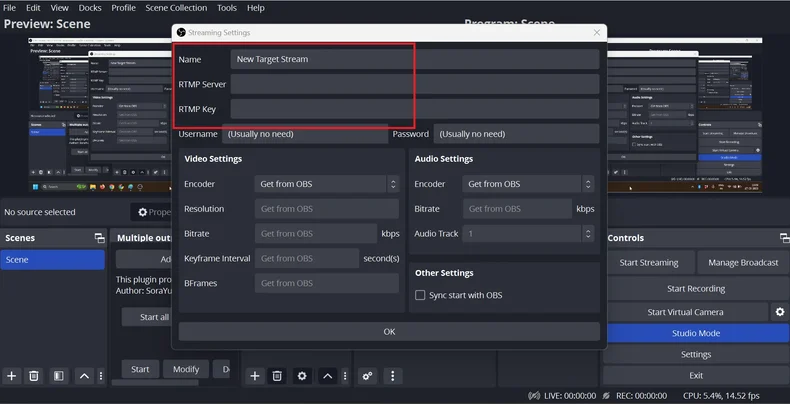
Then there’s the upload bill. A local plugin opens a full separate connection per destination, and sharing the encoder saves CPU, not bytes. YouTube’s own bitrate table recommends 12 Mbps for 1080p60 in H.264, and Twitch’s non-partner cap is widely cited at 6 Mbps. That’s 18 Mbps of video before audio, and you want 1.3 to 1.5 times headroom on top, so call it 24 to 27 Mbps of sustained upload for two platforms. RTMP runs over TCP, which means a saturated uplink degrades every destination at once instead of dropping one cleanly. That’s the honest reading of the bug reports above: on a marginal connection, the second push is what breaks the first.
Method 2: Using a dedicated multistreaming tool
The other route is to stop copying the stream yourself and let a cloud service do it. Restream is the tool this tutorial uses, and it plugs into OBS from the Stream settings.
The architecture is the whole argument. You send one stream up, and the service fans it out to every destination on its own infrastructure. Restream’s pricing FAQ says you need no additional bandwidth even at 30 destinations, and Streamlabs describes the identical mechanism for its own service. On a normal home connection, that’s the deciding factor. The cost: your video passes through a third party, and the free plan is capped at two channels and carries Restream branding.
One policy note, and read it as secondhand. Twitch’s own Simulcasting Guidelines page renders in JavaScript and can’t be quoted directly, so everything here comes from published summaries of it rather than from Twitch. Those summaries agree that Twitch lifted its simulcasting exclusivity ban around October 2023, putting Twitch alongside YouTube within the rules for most streamers, and they agree on what stayed: don’t point viewers off Twitch from inside the stream, and anyone on an individual exclusivity deal still can’t simulcast. Read the guidelines yourself before you rely on any of it.
Restream.io enables you to video stream simultaneously to more than 30 platforms, including many of the most popular free platforms like Facebook Live, TikTok, YouTube Live, Twitch, LinkedIn, and more.
Some of the benefits of using Restream.io are:
- It offers a suite of powerful cross-platform tools such as live chat, analytics, and stream health monitoring, which enable you to keep track of things like bitrate, latency, and fps across different platforms. This can be extremely helpful for identifying any issues that may arise and addressing them quickly to ensure a smooth stream for your viewers.
- Restream.io has a range of additional features with paid plans, including the ability to stream pre-recorded videos, add custom background images and overlays, stream to custom RTMP destinations, and more.
These features can help you to create a more engaging and professional-looking stream, which can help to increase engagement and build your audience.
Tutorial: How to stream to your website, YouTube, and Twitch simultaneously with OBS and Restream
If you’re interested in live streaming your content across multiple platforms, then OBS Studio with Restream is an excellent choice.
In this tutorial, we’ll show you how to use OBS Studio with Restream to live stream to your website, YouTube Live, and Twitch at the same time. To make things even easier, we’ll be using WpStream as our solution for live streaming on your website.
WpStream is a powerful platform for live streaming on your own website, offering a range of benefits that make it the best solution for many streamers.
Here are some of the key reasons why you should consider using WpStream:
Complete customization
One of the key advantages of WpStream is that it is a white-label platform, which means you have full control over the appearance of your stream. This makes it easy to create a professional-looking stream that matches your brand or website.
As WpStream is built for WordPress, you’ll also have total control over the appearance of your site, making it easy to integrate your stream into your existing website design. This can help you create a cohesive online presence that enhances your brand and makes it easy for your viewers to find and engage with your content.
In addition, WpStream has no restrictive content guidelines, meaning you can broadcast whatever you like without fear of your content being taken down or interrupted. This makes it easy to share your message, showcase your skills, or build a community around your content.
Powerful compatibility
Another advantage of WpStream is its compatibility with all of the most popular streaming software and multistreaming tools via custom RTMP connection. This means that you can use WpStream with any streaming setup, whether you’re using a phone camera or professional broadcasting hardware and software. This flexibility makes it easy to create a stream that meets your needs and fits your budget.
In addition, WpStream is designed to work seamlessly with Restream, one of the most popular multistreaming tools available. This makes it easy to stream to multiple platforms at once, increasing your reach and helping you build a larger audience.
Flexible pricing
WpStream offers a range of pricing plans to suit your needs and budget. Depending on how much streaming data and recording storage you require, how many concurrent channels you want to run, and how many viewers you want to reach, you can choose the plan that is right for you.
You can use the pricing calculator on the WpStream website to see which plan is the best fit for your needs, or try out all of the features of the plugin with a free trial. This makes it easy to test the platform and see how it works for you before committing to a subscription.
Let’s now look at how you can work with OBS Studio, Restream, and WpStream to simulcast your live videos.
Step 1: Download and install WpStream and OBS Studio
The first thing you’ll need to do is download and install the WpStream plugin for WordPress, as well as OBS Studio.
Step 2: Set up a subscription with Restream
Next, you’ll need to set up a subscription with Restream in order to live stream to multiple platforms simultaneously.
Restream offers built-in integration with OBS Studio and provides you with access to powerful cross-platform tools like live chat, analytics, and stream health monitoring, making it a more advanced option than using the free OBS Multiple RTMP streaming plugin.
Step 3: Connect Restream to your various streaming platforms
To connect Restream to your website with WpStream:
- From your WordPress site’s dashboard, navigate to ‘Free-To-View Live Channels’, and click ‘Add New’.
- Make any customizations you want and then publish the channel.
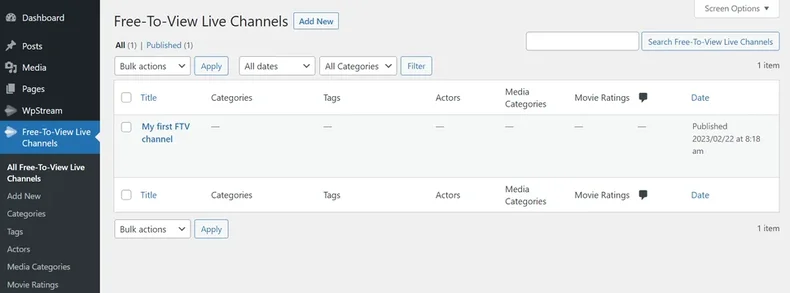
- Turn the channel on, then click ‘Go Live with External Streaming App’.

- Choose ‘Restream’ from the dropdown list, then copy the Restream RTMP URL and stream key.

- Go to the Restream dashboard and click ‘Add Channel’, then select ‘Custom RTMP’. Paste in your RTMP URL and stream key from WpStream.
To connect Restream to YouTube Live and Twitch:
- From the Restream dashboard, click ‘Add Channel’, then select the platform you want to connect to (in this case, YouTube Live or Twitch).
- When prompted, follow the steps to connect your account from the target platform to Restream and grant the necessary broadcasting permissions.
Repeat to add any further platforms that you want to stream to.
Step 4: Set up your stream in OBS Studio and go live
Now that you’ve connected Restream to the different platforms you want to stream to, it’s time to set up your stream in OBS Studio:
- Open OBS Studio and click ‘Settings’, then choose the ‘Stream’ tab.
- Select ‘Restream.io’ from the service dropdown menu, then either connect your account automatically or use a stream key to connect it manually.

- Automatic connection lets you use Restream’s built-in chat function and channel controls as standalone docks without the need to add them manually, so this is the recommended option.
- Make any adjustments that you would like to your stream appearance from the OBS dashboard. To ensure your stream is of the best possible quality, make sure you check out our complete guide on optimizing your OBS settings.
- When you are ready to go live, click ‘Start Streaming’. Your stream will go live on all of the platforms you have connected to Restream.
And that’s it!
With OBS Studio and Restream, you can now live stream your content to your website, YouTube Live, and Twitch all at the same time, with no additional bandwidth requirements.
OBS Studio makes it easy to customize the appearance of your stream, and with Restream’s powerful cross-platform tools, you’ll be able to monitor and engage with your audience across all of the platforms wherever you’re streaming!
OBS multistreaming FAQ
Can OBS stream to multiple platforms at once?
Not on its own. As of OBS Studio 32.2.1 in July 2026, there’s no native setting for sending one broadcast to two different services. You get there either with a local multi-RTMP plugin such as Aitum Multistream or sorayuki’s obs-multi-rtmp, or by pointing OBS at a cloud restreaming service that fans the stream out for you.
Is multistreaming with OBS free?
The plugin route is genuinely free. OBS Studio, Aitum Multistream and obs-multi-rtmp all cost nothing, and you pay in upload bandwidth instead, since every destination is a separate push from your machine. Cloud services have free tiers with strings attached: Restream’s free plan allows two channels and puts its own branding on your stream.
How much upload speed do you need to multistream?
With a local plugin, add up every destination’s bitrate and leave headroom. YouTube recommends 12 Mbps for 1080p60 H.264, and Twitch’s non-partner cap is widely cited at 6 Mbps, so that pair realistically needs 24 to 27 Mbps of sustained upload. Measure what one push actually sustains before you multiply: the WpStream speed tester throws a real RTMP ingest at your connection rather than the generic round trip a browser speed test measures. It checks one WpStream server, not Twitch’s or YouTube’s, so treat the result as your per destination ceiling and add the destinations up yourself.
Can you multistream to your own website?
Yes, and it’s the one destination nobody else controls. Your site needs an RTMP ingest point of its own: WpStream gives each WordPress channel an RTMP URL and stream key, which you add as one more output in a plugin, or as a custom RTMP destination in a cloud service. Your own site then sits alongside YouTube and Twitch rather than behind them.
Multistreaming with OBS & WpStream
Multistreaming is a powerful tool that enables content creators to reach a wider audience, test their content on different platforms, and boost their stream income.
By broadcasting to multiple platforms simultaneously, you can expand your reach and engage with audiences on different platforms.
Using a dedicated multistreaming tool like Restream makes simulcasting to multiple platforms easy and efficient. It eliminates the need for extra bandwidth and provides options for cross-platform tools. Restream offers straightforward connections to the most popular streaming platforms and software solutions like OBS.
If you want to stream to your own website, WpStream is the best solution. Not only does it offer complete control over the appearance of your stream and website, but it is also compatible with all of the most popular streaming software and multistreaming tools via custom RTMP connection.
With its powerful customization options, flexible integrations and extensions, and pricing that suits any budget, WpStream is the perfect solution for content creators looking to stream to their own website.
Go ahead and give it a try to take your streaming game to the next level!
Table of Content